


Fabrics and libraries
Swatch Editor: Prepare Fabric Images
Crop and size fabric images, save swatches and reuse them in your designs.
Updated
Sep 14, 2026
Read time
4 min
Level
Beginner
Open a fabric image
Open the Swatch Editor. Use File > Upload Image to choose an image, or File > Open Swatch Library to reopen a saved swatch. Sign in when prompted to save to your account.
Prepare the swatch
Use the crop and transform controls to frame the fabric, rotate it or flip it. Check the dimensions in the inspector before using the swatch in a block. Swatch Editor help and shortcuts, in the QuiltLab menu at the top left, lists the tools and keyboard shortcuts available today.
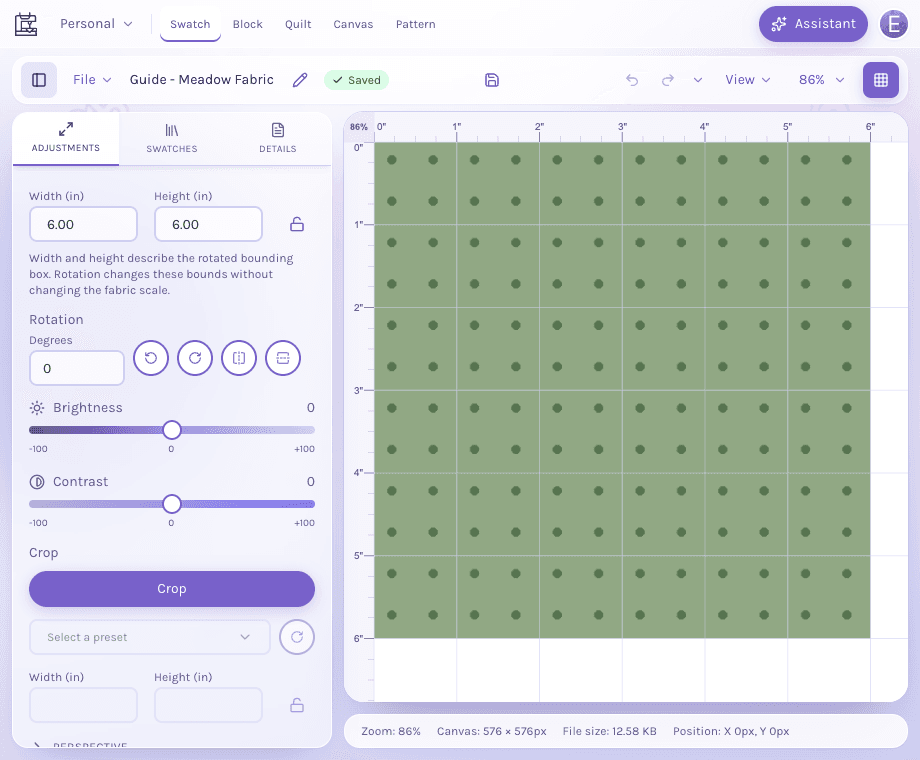
The Adjustments panel places size, rotation, brightness and crop controls beside your fabric preview.
Use the full-size image to inspect the controls. These settings prepare the image; check the save badge separately to confirm it was saved.
View full-size image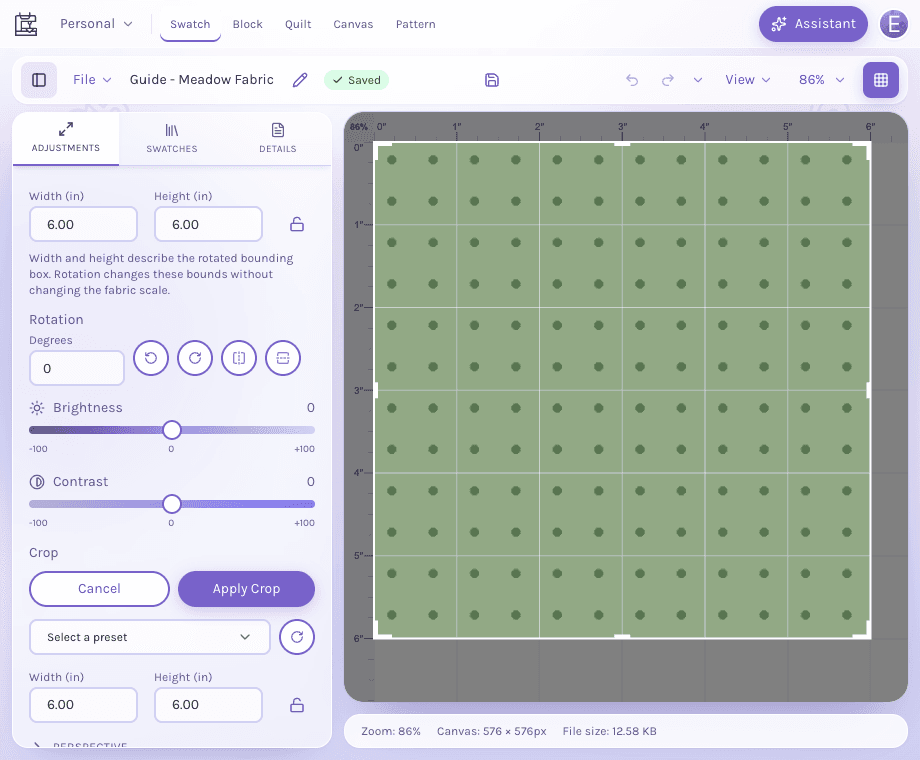
Crop mode outlines the area to keep. Adjust the crop bounds, then choose Apply Crop, or Cancel to leave the image unchanged.
View full-size imageSave and reuse
Watch the save badge after editing. Saving means a write is pending; Saved means the save completed. Use Save to save immediately. A newly uploaded photo is an unsaved draft in this browser until you choose Save and name it; after that first save, your edits save automatically. In a project, autosave keeps edits private; Save to Project updates the version available to the project's other members.
Open the Block Editor to choose fabrics for quilt pieces. Your personal swatches are available in My Swatches. Copying a swatch into a project and moving it into a project have different ownership effects: see Saving, recovery and projects.
If a save fails
Keep the editor open and inspect the error details. An offline queue displays Offline - waiting to save until the connection returns. If the session expired, sign in again. A browser draft or pending queue is not confirmation that your account has the latest edit. See the recovery guide before discarding work or clearing browser data.
Find a fabric
Use Search fabrics in the library panel to search your fabrics, the active project and the catalog together. Search a name, collection, manufacturer, SKU or tag. Every word must match a word or prefix; names and exact SKUs come first. Choose Catalog to narrow by manufacturer, collection or approximate main color. A broad search may ask for another word or filter. Spelling suggestions run only when you click them. Look for similar colors is a separate action for approximate color discovery.