


Sewing diagrams
Diagram Editor: Illustrate Sewing Steps
Draw diagram pieces, add lines and labels, and reuse diagrams in patterns.
Updated
Sep 14, 2026
Read time
4 min
Level
Beginner
Open a diagram
Open the Diagram library and choose a diagram, or open a diagram frame inside Pattern Builder. The inline editor works on the diagram referenced by that frame.
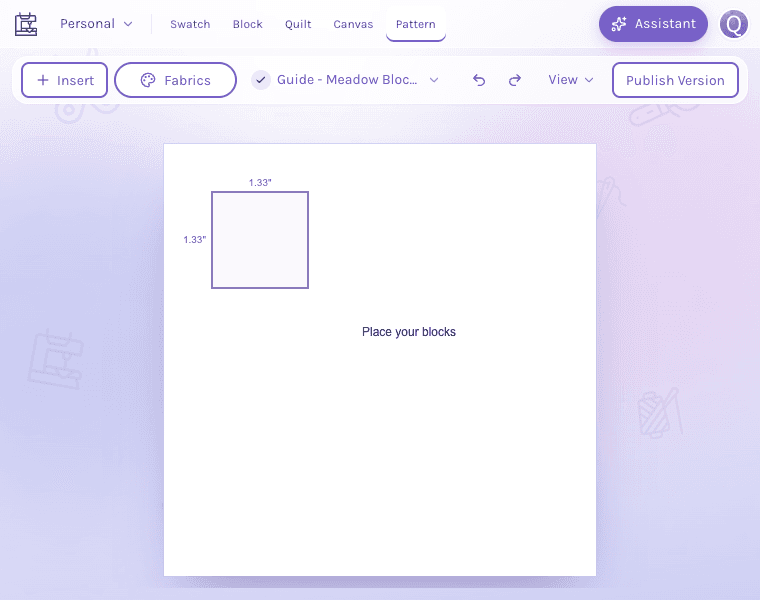
A simple diagram combines a measured rectangle with a text label. Insert is on the toolbar; Seam allowance and Dimension labels are in its View menu. On a narrow window, as shown, Fabrics opens the fabric list; on a wider window the Fabric palette sits beside the canvas.
View full-size imageAdd and edit content
Use Insert on the toolbar to add diagram elements, lines and labels. Select an element to edit its properties. Use the Fabric palette beside the canvas (the Fabrics button on a narrow window) to apply an available swatch to a selected element. Undo and Redo let you revisit changes during the current session.
Save and return to the pattern
Diagram edits autosave shortly after you stop editing. Save writes immediately and refreshes the thumbnail; Ctrl+S on Windows/Linux or Cmd+S on Mac does the same. Publish Version records a diagram version and is a separate action from ordinary saving.
In the inline editor, Done saves pending changes before closing. If saving fails, the diagram remains open with recovery controls. Choose Retry to try again, or Discard changes only when you want to abandon those edits.
Handle access changes
View-only access prevents editing. If access changes while you have unsaved work, the editor explains that the edits cannot be saved; Retry is unavailable when permission prevents writing. Review the warning before discarding.
For more about the save badge and safe recovery, read Saving, recovery and projects. Continue laying out instructions with the Pattern Builder guide.