


Pattern writing
Pattern Builder: Write and Print a Pattern
Arrange pages, instructions and diagrams, then check and download a PDF.
Updated
Sep 14, 2026
Read time
4 min
Level
Beginner
Open a pattern
Open My Patterns, or use Pattern Builder to resume a pattern. Use File > New Pattern for a fresh document. Name it in the toolbar.
Add pages and content
Use Insert for text, images, diagrams, tables and other supported content. Select a frame to edit it with the sidebar panels. Drag frames to position them and use the zoom controls to check the page. Pattern Builder help and shortcuts, in the QuiltLab menu at the top left, lists the current selection, grouping and panel shortcuts.
Choose File > Page size to select a format. The dialog states that it applies to all pages and shows the current format. If the document has custom page dimensions, those dimensions are offered as Custom rather than silently replaced by another format.
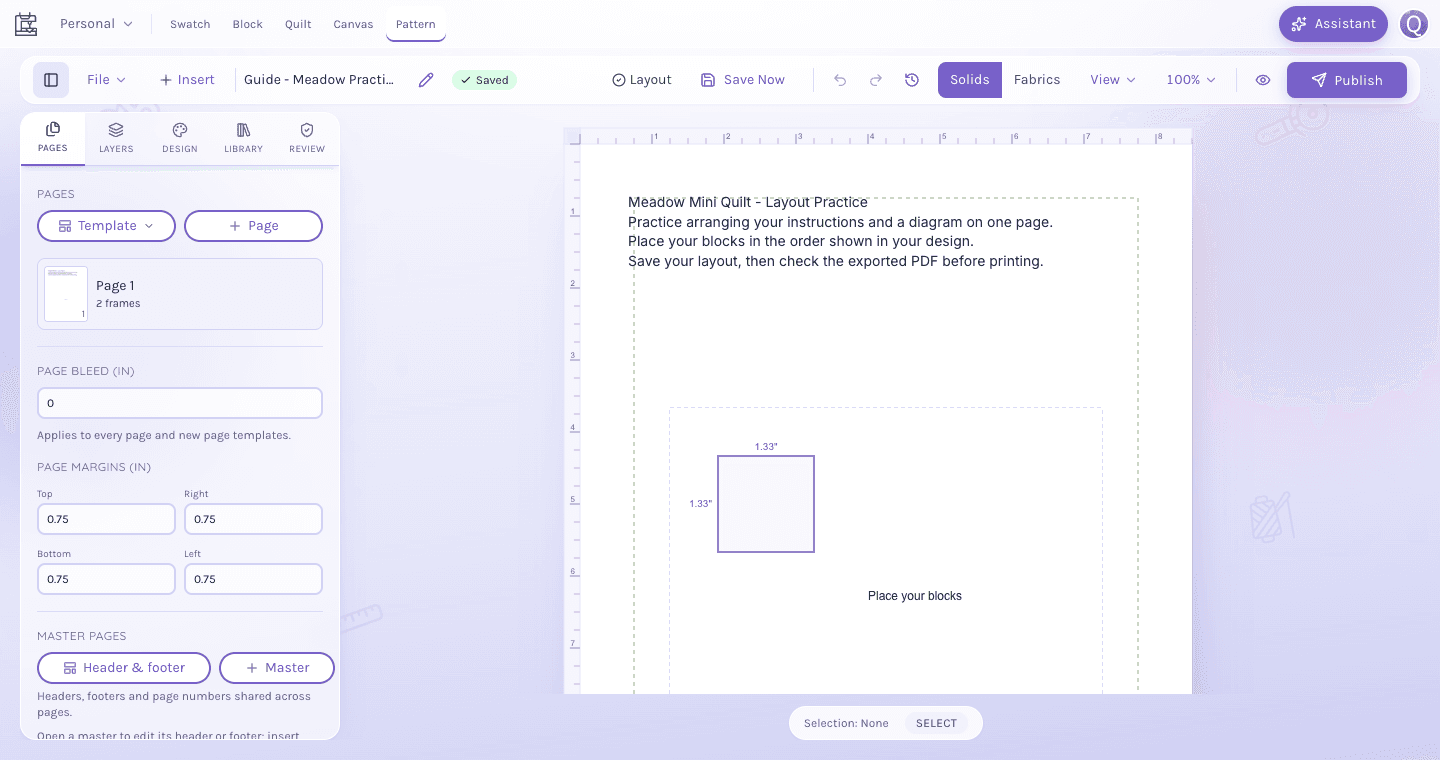
The Pages sidebar lists your pages and margins, while the page workspace holds instruction and diagram frames.
View full-size image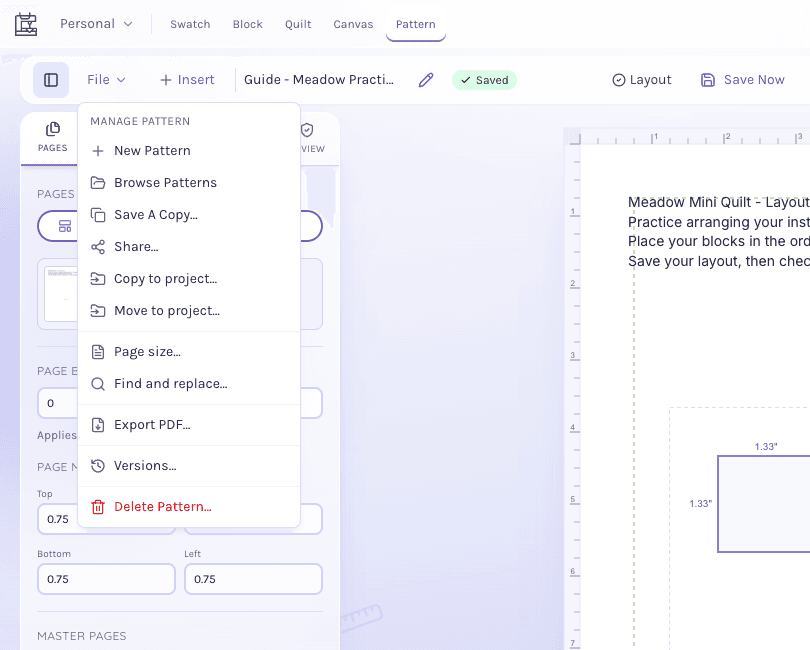
Open File to find Page size, Export PDF and Save A Copy alongside the pattern management commands.
View full-size imageRead the demonstration steps
Change the paper size for every page in a pattern. Open File, then choose Page size. The dialog shows Letter as the current format. Read the note: the change applies to all pages, including master pages; content keeps its size and position. Select A4, then choose Apply to all pages. Wait for Saved and review the layout after changing formats. Reopen File > Page size to confirm that A4 is now marked Current. The wait while reopening the dialog has been shortened in this recording.
Read the descriptive transcript or open the video if playback fails.
Save without publishing
Edits autosave. Save Now writes the current document immediately; Save A Copy creates a separate pattern. Couldn't save means the latest write failed: keep the editor open, inspect the error and try Save Now again. Saving a pattern is separate from publishing it. Project patterns use their existing shared document permissions, rather than private snapshot drafts.
Check and download a PDF
Use Print Preview and the Review panel to check the document. Resolve errors before publishing. Warnings explain what needs attention; when a warning names content, use its navigation action to locate the page or frame.
Choose File > Export PDF to download the pattern. Wait for the download and open it to check the result. If export fails, keep the editor open and retry after resolving the error. A successful save alone does not confirm a PDF download.
Work with diagrams and collaborators
Open a diagram from its frame to edit it, then choose Done to save and return. See the Diagram Editor guide and project sharing and recovery.