


Saving and recovery
Saving, Recovery and Projects
Understand save feedback, private drafts, sharing and library ownership.
Updated
Sep 14, 2026
Read time
5 min
Level
Beginner
Read the save badge
- Unsaved changes: your latest edits have not finished saving.
- Saving: a write is pending. Wait for it to finish before leaving.
- Saved: the current tracked changes have saved to their destination.
- Couldn't save: a write failed. Keep the editor open and inspect its details.
- Offline - waiting to save: an editor with an offline queue has pending work.
- Local draft: the new quilt exists only in this browser, not in your account.
- Read-only: you can view the document but cannot edit it with your current access.
Canvas saves each action automatically and has no Save button. Swatch, Block, Quilt, Pattern and Diagram retain their autosave and immediate-save controls. Diagram also saves before closing its inline editor with Done.

Personal on the workspace bar means no project is active; Saved beside the quilt's name reports the current save status. When a design saves somewhere other than the place named on the bar, a Saves to note says where.
View full-size imagePrivate drafts and shared versions
For project Swatches, Blocks and Quilts, autosave keeps your edits in a private draft. Saved privately does not mean other project members can see the edit. Use Save to Project for a Swatch or Block, or Update project quilt for a Quilt, to update the shared version. The badge then reads Shared version.
If another member updated the asset first, the conflict dialog lets you load the latest shared version, overwrite it when permitted, or save a new project copy. Read the choices before replacing work.
Project Canvases and Patterns save to their shared documents directly. Do not assume their edits stay private until a separate publishing step.
Choose where a design belongs
Open Projects to find a project's assets and members. Share opens membership controls; your role determines which changes are allowed. Sharing a project gives members access to its assets, not just the asset whose editor opened the dialog.
Personal libraries belong to your account. Copy to Project creates a project copy and leaves the personal original in place. Move changes ownership and availability, so inspect the destination and confirmation before completing it. View-only roles can browse but cannot change the asset.
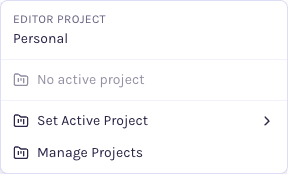
The editor project menu shows Personal when no project is active and offers Set Active Project and Manage Projects.
View full-size imageRecover interrupted work
Keep the editor open if saving fails. Restore the connection or sign in again when prompted, then use the available Save or Retry action. In Canvas, retry by repeating the failed action. Do not clear browser data while relying on a local draft or offline queue.
When an editor offers a recovered draft, review its document and timestamp before choosing Restore or Discard. Recovery depends on the editor and the browser data still being available; it is not a substitute for a completed account save. If access became read-only, recover access before trying to save or use an available copy/export action. Discard changes abandons local edits.
For inline diagrams, a failed Done leaves the editor open. Retry can finish the save and close; Discard changes abandons the draft. See the Diagram guide.
Accept a newer block deliberately
Quilts can keep the block version already placed in the design. Use Block updates to preview a newer version and Accept update to apply it. In project quilts, that acceptance stays private until you update the project quilt. See the Quilt guide.