


Canvas
Canvas Editor: Arrange Your Ideas
Combine images, text, shapes and library assets on a personal or project canvas.
Updated
Sep 14, 2026
Read time
4 min
Level
Beginner
Open a canvas
Visit My Canvases to open a canvas. The Canvas Editor also resolves a canvas to work on. For a shared canvas, open it from its project so you retain the correct project context.
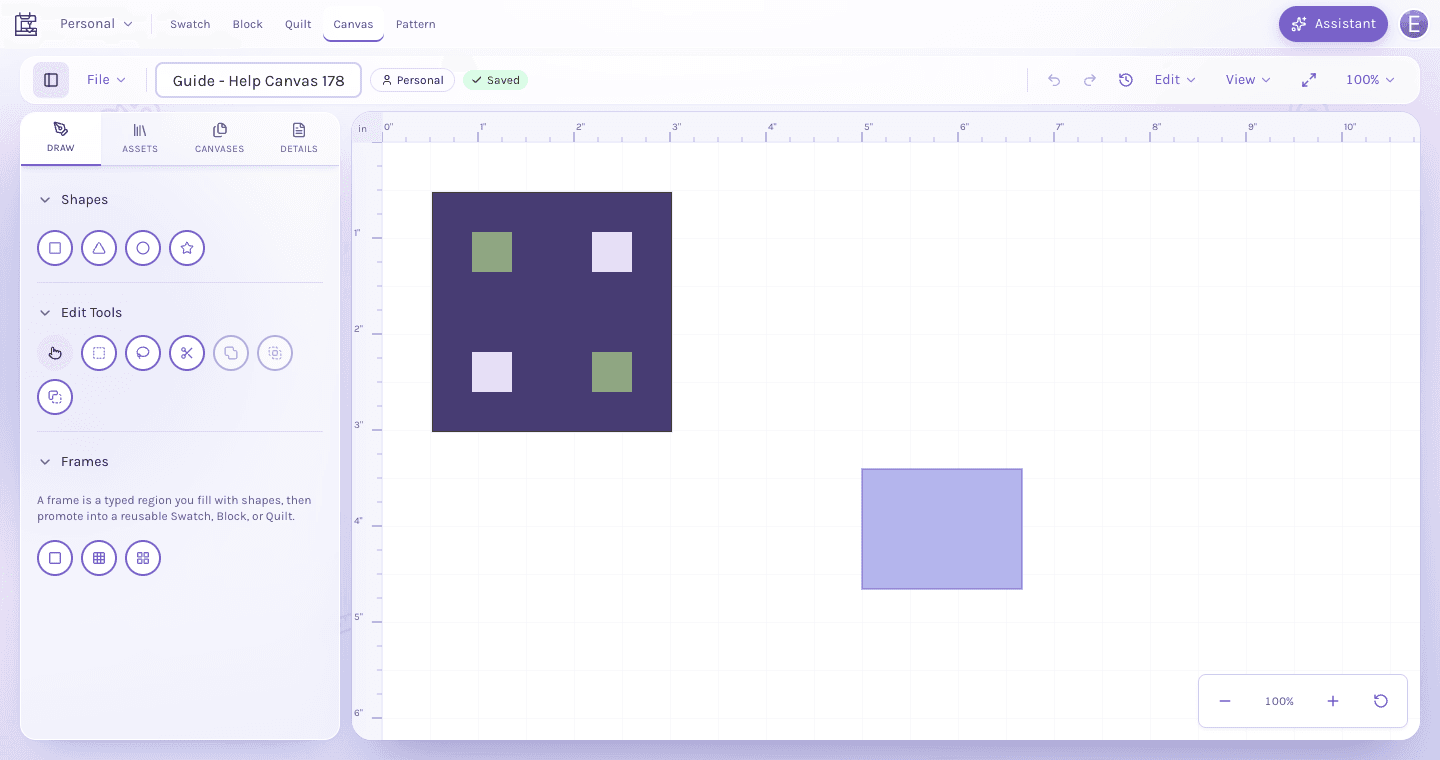
The Canvas Editor places drawing and frame tools beside an open workspace for arranging objects.
View full-size imageArrange the contents
Use the sidebar to add images, text, shapes or library assets. Select an item to move it or edit its properties. Select several items to group them, and use Ungroup when you need to work on the individual pieces again.
The toolbar provides Undo, Redo, History and zoom. Edit holds Duplicate, Group and Ungroup; View holds Show grid and Snap to grid. Click the canvas before using its keyboard shortcuts. Arrow keys move selected items; with nothing selected they pan the view.
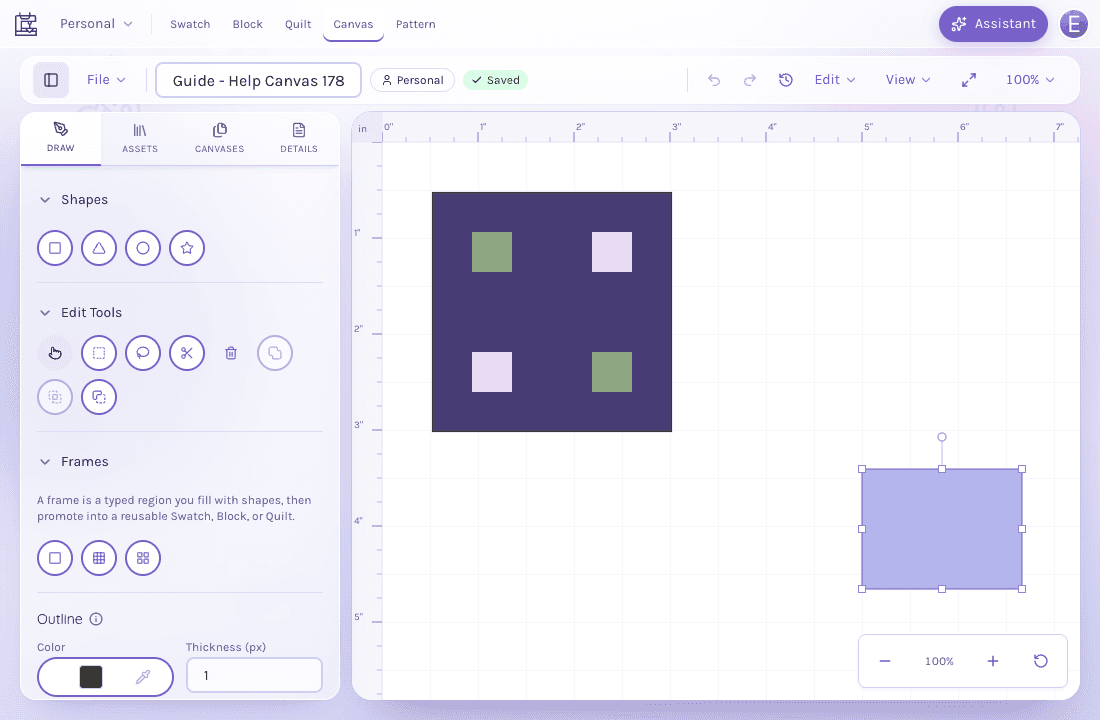
Selecting the rectangle reveals resize and rotation handles and its outline controls.
View full-size imageUnderstand saving and access
Canvas writes edits automatically. There is no manual Save button. Saving means changes are being sent; Saved means no tracked write is pending or failed. If a write fails, keep the editor open, inspect the error and repeat the action when the connection or access problem is resolved.
A project canvas is shared directly with members who have access. It does not use the private-draft publishing flow of project Swatches, Blocks and Quilts. View-only access disables editing.
Reuse or export a design
Select content, open Edit on the toolbar and choose Block, Swatch or Quilt under Convert selection to, where that action is available. Read the destination notice before confirming. When converting to a quilt, the shapes become annotations; add blocks to its grid in the Quilt Editor.
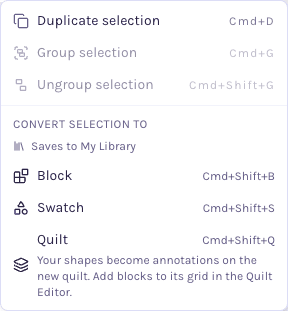
Open Edit on the toolbar and choose Block, Swatch or Quilt for the selected artwork; this personal canvas shows Saves to My Library.
View full-size imageUse File for PNG or SVG export. File also offers copy or move actions according to your access. See ownership and project sharing before moving a personal canvas into a project.