


How to Make a Photo Quilt with Pieced Squares
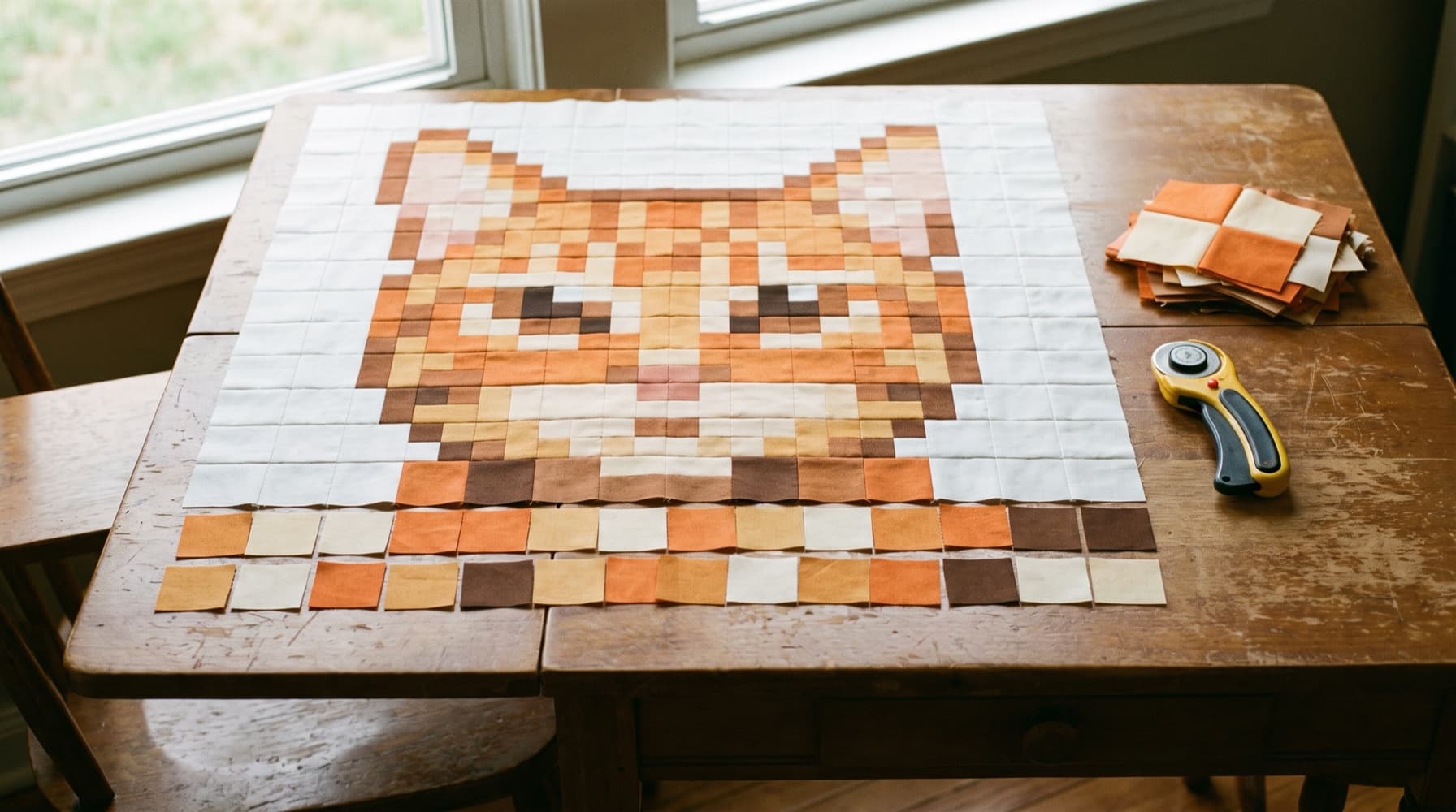
To make a photo quilt from pieced squares, start with a tightly cropped, high-contrast image. Convert it into a color grid, choose fabrics for that grid, and sew the squares in labeled sections. For a first throw, try 2-inch finished squares before considering smaller pieces: a 60 x 72-inch layout already needs 1,080 patches.
This tutorial uses QuiltLab's Photo Mosaic tool. If you want faces, handwriting or several photographs to remain photographic, start with printed fabric instead; our photo quilt ideas compares those approaches.
The cover is an AI-generated illustration, rather than a sewn QuiltLab project or a product export.
Choose a photo with one readable subject
Use a picture you own or have permission to reproduce. A pet, flower or building that fills the frame gives you a clearer starting point than a distant subject in a busy scene. Crop away surroundings that do not help identify it.
Look at the lights and darks before choosing every color. Lindsay Conner's Craftsy photo-to-quilt guide, featuring Caro Sheridan's teaching, recommends high contrast and considering pixel scale. Try a black-and-white view in your photo editor. If the subject blends into the background, crop differently or choose another picture.
Keep the unedited original. A mosaic simplifies the image, so judge the preview by the feature you most want to keep: the ears, a roofline or a broad flower shape.
Choose finished patch size before counting cuts
The same 60 x 72-inch finished layout, without borders, has these square-patch counts:
| Finished square | Patch columns x rows | Total patches | Nominal cut square |
|---|---|---|---|
| 3 inches | 20 x 24 | 480 | 3-1/2 inches |
| 2 inches | 30 x 36 | 1,080 | 2-1/2 inches |
| 1-1/2 inches | 40 x 48 | 1,920 | 2 inches |
| 1 inch | 60 x 72 | 4,320 | 1-1/2 inches |
Halving the finished patch width and height quadruples the count at this fixed footprint. Moving from 2-inch squares to 1-inch squares means 4,320 pieces instead of 1,080. More positions can describe smaller features, but you still need to inspect the resulting image.
QuiltLab groups patches into blocks. With 2-inch patches and 12-inch blocks, each block contains 6 x 6 = 36 patches. Five block columns and six block rows give 60 x 72 inches, with 30 x 36 = 1,080 patches. These are manual layout calculations; the small production example below checks the software workflow separately.
Generate and review the mosaic in QuiltLab
- Sign in, then open the Quilt Editor. From File, choose New Quilt, select Photo Mosaic, then Create photo mosaic quilt. Read the save destination in the chooser.
- In Properties > Settings > Image, choose Upload Image and wait for Image loaded. Use your cropped picture.
- Under Pattern, choose Squares. This tutorial's cut-size arithmetic is for square piecing; triangle and applique methods need their own construction instructions.
- Set Maximum colors. Try 12 to 16 for a first photo preview, then adjust by what remains readable. The control accepts 4 to 64; it sets a ceiling, rather than promising that every requested color will appear.
- Choose Balanced or Fidelity under Analysis quality. Balanced samples fewer source pixels; Fidelity averages every pixel. Changing this choice clears the existing result until you regenerate.
- Choose Image fit. For the exact 60 x 72-inch plan, crop your photo to a 5:6 width-to-height ratio and choose Stretch. Stretch keeps both grid dimensions; a different photo ratio would be distorted. Fit to width derives height from the photo ratio, and Fit to height derives width, so those choices can change the other dimension and block count.
- Enter the patch and block width and height, plus block Columns and Rows. For the 60 x 72-inch plan above, use 2-inch patches, 12-inch blocks, five columns and six rows. Check the displayed Quilt size, then the actual guide dimensions after generation. If a patch does not divide evenly into its block, read the validation message before proceeding.
- Choose Generate Mosaic, then wait for Mosaic ready. Later changes use Regenerate Mosaic.
The Quilt Editor guide explains the design modes and measured layout. Check the save destination as well as Saved. Upload, storage and saved-design allowances depend on your account; see current access and limits.
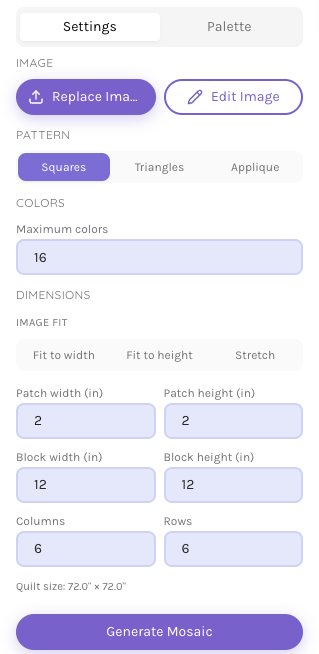
This settings example makes a 72-inch square. Use five columns and six rows for the 60 x 72-inch plan. The current panel also includes the analysis-quality choices described above.
View the whole mosaic at a reduced zoom. If the subject disappears, first try a tighter crop or stronger subject-background contrast. Edit Image opens the source in the Swatch Editor; Apply to Mosaic returns the edited image and clears the old result so you can regenerate. The Swatch Editor guide explains its crop and adjustment controls.
Check a small result before planning the full quilt
Our October 15 production check used a two-color, 8 x 8-pixel diamond we drew for this purpose. We chose Squares, Fidelity, a maximum of four colors, 1-inch patches, 4-inch blocks, and two block columns and rows.
The generated design measured 8 x 8 inches. Each block contained 16 patches, giving four blocks and 64 patches altogether. The saved design reopened with the generated result intact.
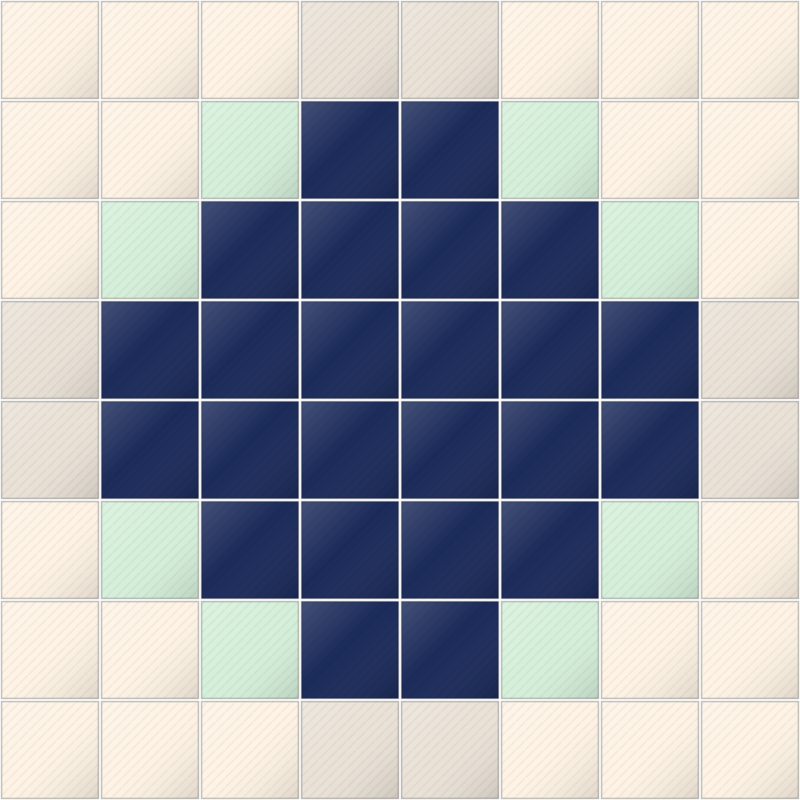
Although the source had two colors, the result used four: the image-processing steps can produce intermediate colors. Its color-key counts were 24, 24, 8 and 8, totaling 64. Use your generated counts when selecting fabric, rather than assuming each source pixel or color survives unchanged.
Match the color key to actual fabric
Open Palette to see the detected colors and their patch counts. In our small example, 24 out of 64 patches is 37.5%, and 8 out of 64 is 12.5%. The displayed percentages round individually to 38%, 38%, 13% and 13%; use the counts for cutting arithmetic.
Compare physical solid fabrics or fabric color-card samples side by side. Keep the light-to-dark relationships that make the subject readable. Our screen-to-swatch guide explains how to turn digital candidates into a physical comparison.
Enter each chosen fabric in its Fabric name field. Use Adjust color if you want the preview to reflect that choice. Save the quilt, wait for Saved, and reopen it to check the names and result before leaving the editor. Saving and recovery explains private drafts and shared project versions.
Download and read every page of the block guide
In Settings, choose Preview & export block guide, or use File > Export Block Guide PDF. The Palette tab also offers Preview block guide. In Block Guide Preview, choose Export to PDF.
The downloaded guide includes physical quilt and patch dimensions, the patch grid, block and color counts, a color key and a scaled assembly overview. Square-patch cutting instructions add a nominal 1/4 inch to each opposing edge. Thus our 1-inch finished patches have 1-1/2-inch cuts; the throw's 2-inch patches need 2-1/2-inch cuts.
Our actual small guide had two pages. Its fourth color-key entry continued onto page two. Check the whole download before counting fabric. The overview is scaled to fit, so it is a placement reference rather than a life-size cutting template. If export fails, keep the preview open and choose Retry export.
Calculate fabric from cut size and usable width
The guide supplies patch counts; purchase yardage remains your calculation. Suppose one color in the larger plan needs 212 squares, each cut 2-1/2 inches, and your prepared cloth has 40 usable inches across:
- Each strip yields 40 / 2.5 = 16 squares.
- You need 212 / 16 = 13.25, rounded up to 14 strips.
- Those strips use 14 x 2.5 = 35 inches along the fabric.
Fourteen strips yield 224 squares, leaving twelve beyond the required count. Buying 1-1/8 yards supplies 40-1/2 inches before preparation, leaving room beyond the 35-inch strip plan. Choose your purchase margin after considering squaring, shrinkage, mistakes and the fabric's actual usable width.
For a small color count, a prepared 18 x 21-inch rectangle fits 7 x 8 = 56 of these squares. Measure the cloth rather than assuming every fat quarter has that clean area. Recalculate for every color, and plan backing, batting and binding separately; our backing and binding guide covers those purchases.
Sew and measure one section first
Label each fabric to match the color key, then mark block row and column positions on a working copy of the layout. Lay out one block at a time. Check its orientation and colors before joining anything.
For the 12-inch-block throw plan, sew six rows of six 2-1/2-inch cut squares. Each joined row should measure 12-1/2 inches long: six cuts total 15 inches, and five joins each consume 1/2 inch. Join the six rows and check for a 12-1/2-inch unfinished block after pressing.
The American Patchwork & Quilting seam guide explains how stitching and the pressed fold affect the measured result. Check your seam setup on the intended fabric before repeating the whole block batch. Follow your chosen pressing method consistently and match intersections when joining sections.
A fusible-grid method is another construction choice, with different preparation. Jenn Thorsen's pixel-quilt grid tutorial explains that workflow alongside ordinary pixel-block and grouped-cut approaches. Choose the method before cutting; merging square runs into rectangles changes the cutting list.
Finish without losing the picture
Once the sections are joined, view the top from a distance before choosing quilting. Try a thread sample beside both the lightest and darkest fabrics. Choose a quilting design that supports the image, while meeting your batting's required spacing; the batting-distance guide explains that separate check.
Start now with one cropped image and a preview you can recognize at small scale. Save it, download every guide page and match the color key to cloth. Then sew and measure one block before cutting the remaining squares.
Related posts
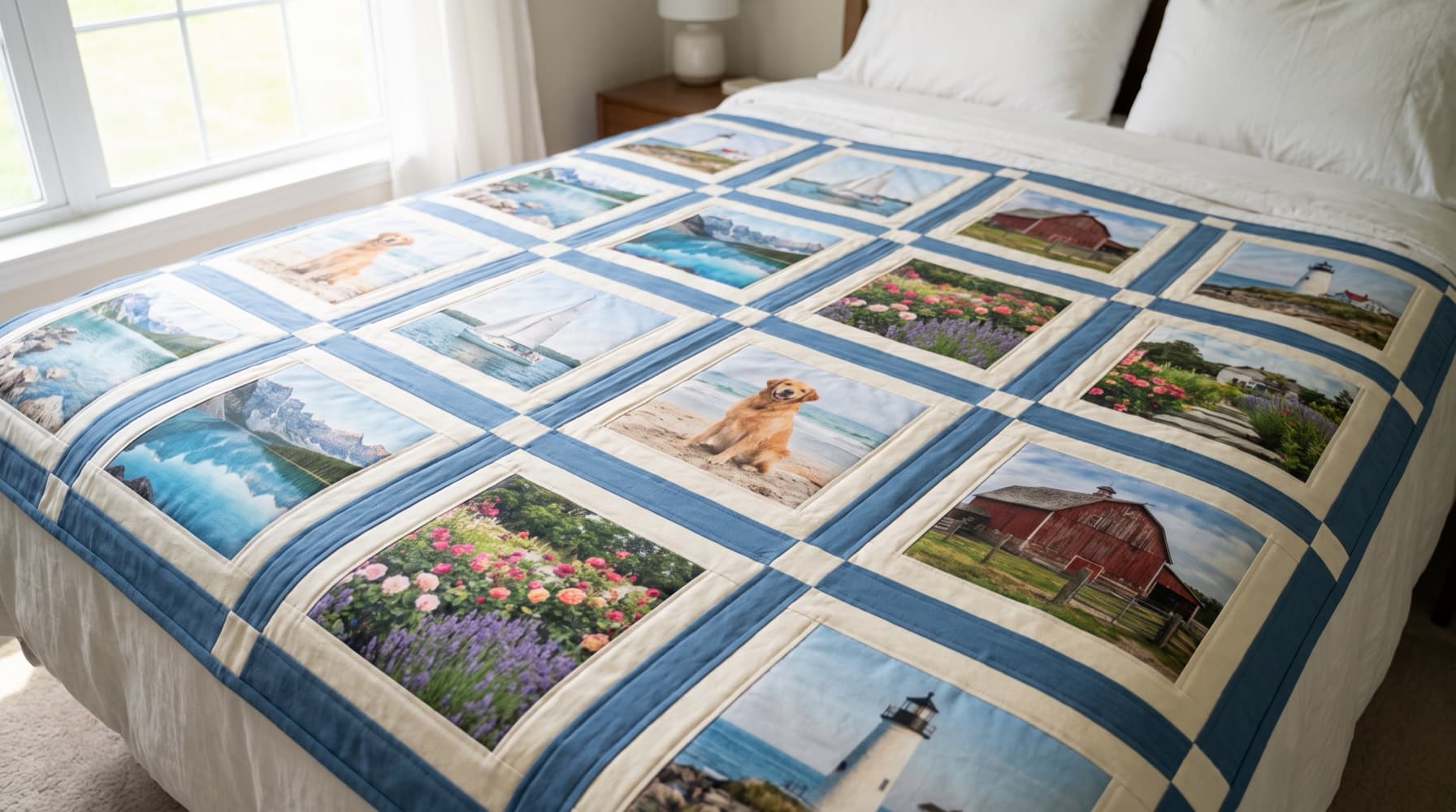
Photo Quilt Ideas: Seven Projects, From Printed Panels to Pieced Mosaics
There are three ways to put a photo in a quilt, and each suits different pictures. Here are seven project ideas matched to the right technique, with layout sizes you can use.
How to Sell Quilt Patterns: Package and Delivery
Prepare a clear pattern listing, a versioned download package and a delivery check, with a plan for access, support and corrections.
AI Quilt Design: Describe, Review and Edit in QuiltLab
Follow a real QuiltLab assistant prompt through proposal review, saved editing and SVG export, then independently check the square-patch construction math.