


Design Your First Quilt in QuiltLab: A Nine Patch Chain Throw, Step by Step
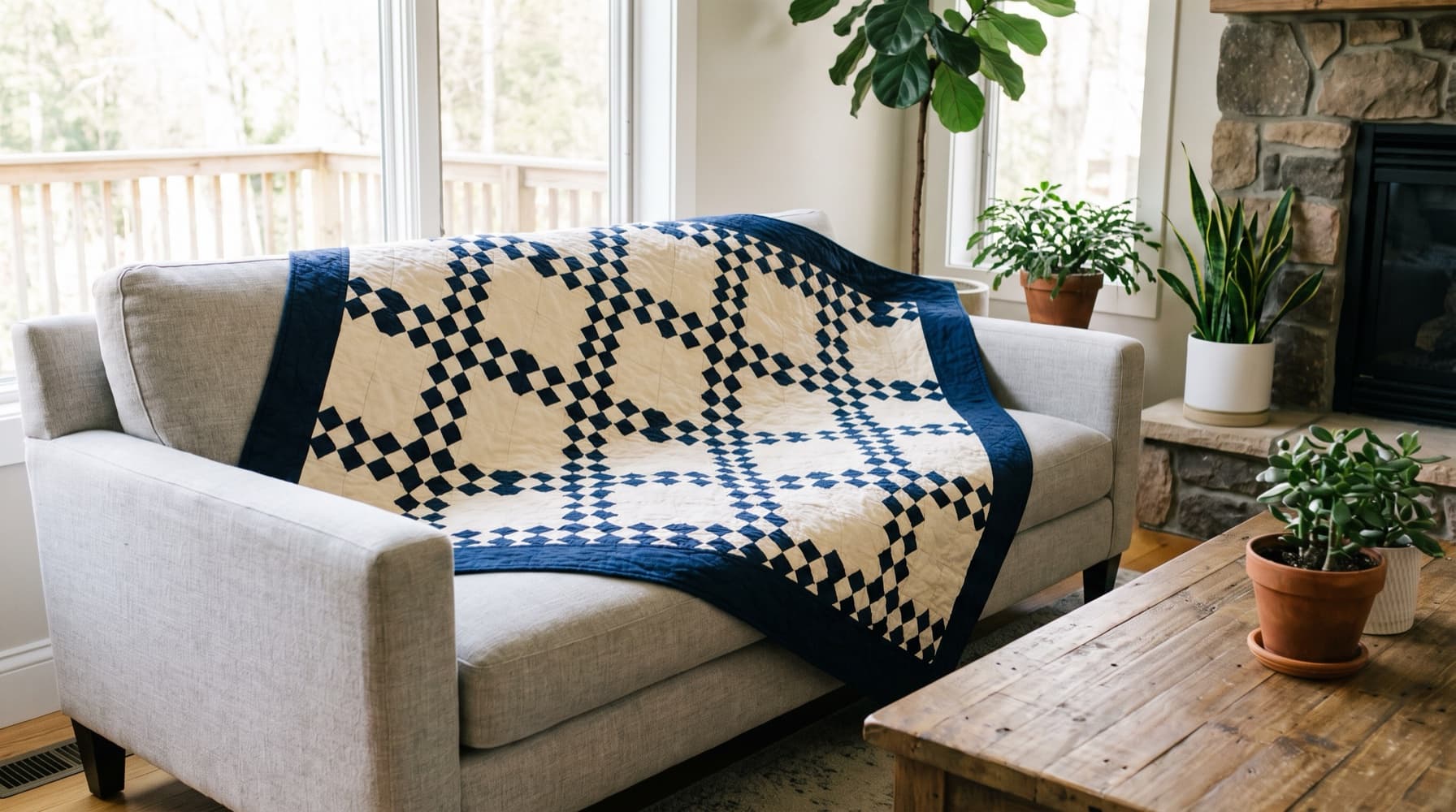
This quilt design software tutorial builds a first QuiltLab design from two blocks, then checks the cutting quantities on paper. The target is a 68 x 80-inch nominal finished throw: a 60 x 72-inch center with a 4-inch finished border on all sides.
Use a desktop or laptop browser so the canvas and controls have room. Sign in to save your work; see current account options if you need to check limits. Gather fabric and tools using the beginner supplies checklist.
The design and calculations below are a worked planning example, not a sew-tested pattern. The cover is an AI-generated Gemini mood illustration, retained from the earlier article; it is not a photograph of this project or QuiltLab output.
1. Decide what the two blocks will do
Make fifteen 12-inch finished Nine Patches and fifteen plain 12-inch finished blocks. Alternate them in five columns and six rows. Within each Nine Patch, put dark fabric at the four corners and center, and light fabric at the four edge positions.
Julie Baird's Single Irish Chain explanation shows how pieced blocks alternate with plain squares to create this traditional chain structure. Our five-by-six rectangle has different arrangements at its top and bottom; it is not a mirror-symmetrical setting. Matching opposite ends would require a different block count and new measurements.
Keep one dark and one light for this first exercise. Compare the physical fabrics before drawing; a screen preview does not establish their actual color or usable yardage. The beginner block progression offers smaller practice units if you want to check your seams first.
2. Optionally prepare your own fabric images
Solid colors are enough to learn the layout. To audition your fabrics, take a straight-on photograph and measure the area it represents:
- Open the Swatch Editor and choose File > Upload Image.
- In Adjustments, check Width (in) and Height (in) against that measured area. Crop or rotate as needed, then recheck the dimensions.
- Choose Save, name the swatch when prompted, and wait for Saved.
Prepare a dark and a light swatch. Image dimensions help you audition print scale, but photograph distortion and color still need a physical check. The published Swatch Editor guide explains the first named save and subsequent autosave.
3. Draw and save the Nine Patch
A Nine Patch is a three-by-three grid. Dividing a 12-inch finished block by three gives 4-inch finished patches.
- In the Block Editor, choose File > New Block. Save any current work before starting another document.
- Set the block width and height to 12 inches using the toolbar's dimension controls or Block / Grid menu.
- Set Grid Spacing to 4 inches. Turn on Show grid if the grid is hidden, and Enable grid snapping if snapping is off.
- In Draw, choose Rectangle. Drag between adjacent grid intersections to draw one 4-inch square. Choose Rectangle again for the next square; an ordinary completed drag returns to Select.
- Draw nine squares covering the block. Select each and check Draw > Shape Dimensions for 4 x 4 inches. Use Undo and redraw if a square is misplaced.
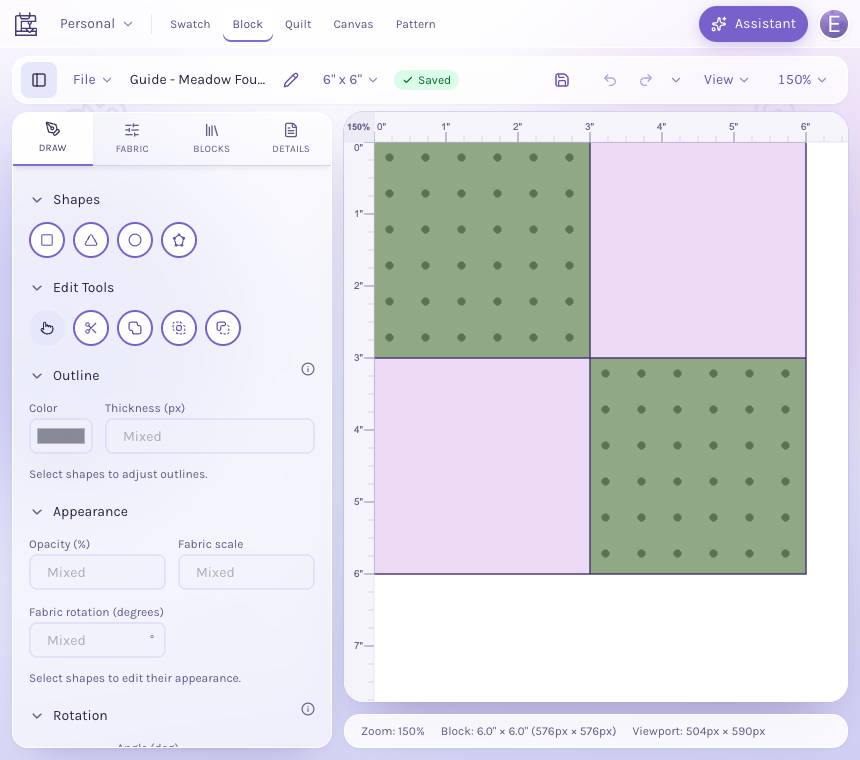
Retained first-party help screenshot: a six-inch four-patch example from September 2026. The tutorial uses the same drawing controls for a twelve-inch Nine Patch.
Select the corner squares and center square in turn. In the Fabric sidebar, use Fill > Colors for a solid color, or Fill > Fabrics > My Swatches for a saved fabric. Apply the dark fill to those five squares and the light fill to the other four. Check the selected piece before choosing its fill. The Block Editor guide describes selecting pieces and changing fabric.
Name the block Nine Patch Chain, save it and wait for Saved. Then choose File > New Block, set its width and height to 12, and draw one 12 x 12-inch Rectangle. Give it the light fill, name it Plain Light and save it.
4. Arrange the thirty-block center
- In the Quilt Editor, choose File > New Quilt, select Grid, then Create grid quilt.
- Open Properties > Layout and keep Orientation set to Standard.
- Set the block W and H to 12, Cols to 5, and Rows to 6. Begin without a border. The center is 5 x 12 = 60 inches wide and 6 x 12 = 72 inches tall.
- In Blocks, choose Nine Patch Chain. Place it in row one's columns 1, 3 and 5; row two's columns 2 and 4; repeat those alternating rows three times. That places fifteen Nine Patches.
- Press Escape to leave placement mode. Choose Plain Light, fill the fifteen empty cells and press Escape again.
Check every row against the alternating arrangement. Use Undo if a placement replaces the wrong block. The dark corner patches of diagonally neighboring Nine Patches meet to form the chains; the plain blocks leave open background areas.
If the chain is difficult to see, inspect both the placement and fabric contrast. A busy light print can interrupt it even when the cutting counts are correct. After editing and saving a source block, use Block updates to review the change in an existing quilt. Saving the block does not silently replace every placed version. See the Quilt Editor guide.
5. Add one four-inch finished border
Open Properties > Borders and choose Add border. In the new border row, set Finished width to 4 inches and Corners to Square. Use the solid-color control or Choose fabric to select the border fill.
Widths in these border rows are finished inches, ordered from the quilt center outward. Use just one row for this example. Four inches on each side add eight inches to each overall dimension: 60 + 8 = 68, 72 + 8 = 80. Check Overall in the bottom status bar for the bordered dimensions.
Name and save the quilt; wait for Saved. File > Export PDF provides a layout reference. Keep the separately checked cutting tally below with it. The border design guide covers other framing choices; they require their own cutting quantities.
6. Translate finished geometry into raw cutting sizes
For these straight-edged squares and rectangles, a 1/4-inch seam on each side adds 1/2 inch to each finished dimension. Julie Baird's block-drafting explanation distinguishes grid dimensions from this cutting allowance. Triangle methods need different calculations.
| Piece | Finished size | Cut size | Quantity |
|---|---|---|---|
| Dark Nine Patch squares | 4 x 4 inches | 4.5 x 4.5 inches | 75 |
| Light Nine Patch squares | 4 x 4 inches | 4.5 x 4.5 inches | 60 |
| Plain light blocks | 12 x 12 inches | 12.5 x 12.5 inches | 15 |
| Side borders, attached first | 4 x 72 inches | 4.5 x 72.5 inches | 2 |
| Top/bottom borders, attached second | 4 x 68 inches | 4.5 x 68.5 inches | 2 |
Three 4.5-inch patches total 13.5 inches; two joins consume 1 inch. A sewn Nine Patch therefore measures 12.5 inches raw. Five raw blocks joined in a row total 62.5 inches minus 2 inches for four joins: 60.5 inches. Six rows similarly give 72.5 inches.
The border lengths assume that accurate 60.5 x 72.5-inch raw center. Attach the sides first. Two 4.5-inch strips add 8 inches after their joining allowances, making the raw width 68.5 inches. Measure across that bordered center before cutting the top and bottom lengths. The nominal complete raw top is 68.5 x 80.5 inches.
Measure the actual sewn center flat before using these nominal lengths. Sherri McConnell's border advice compares both edges with the middle and averages small differences. Investigate a large discrepancy before attaching borders; an accurate software layout cannot correct sewing distortion.
7. Check yardage and joining loss separately
Assume 40 usable inches across the fabric after selvages are removed. Measure your own prepared fabric. These purchases are independent quantities for four separate fabric roles, with no directional-print matching allowance.
- Dark patches: each 4.5-inch width-of-fabric strip yields eight squares. Ten strips yield eighty squares for the seventy-five required, using 45 inches of fabric length. A 1.5-yard purchase provides 54 inches.
- Light patches and plain blocks: eight 4.5-inch strips provide sixty-four small squares, using 36 inches. Five 12.5-inch strips provide fifteen plain blocks, using 62.5 inches. Total: 98.5 inches; 3 yards provides 108 inches.
- Border: cut eight 4.5 x 40-inch strips, using 36 inches of length. Pair them into four runs with straight 1/4-inch joining seams. Each pair is 40 + 40 - 0.5 = 79.5 inches, long enough to trim to either 72.5 or 68.5 inches. A 1.125-yard purchase provides 40.5 inches.
The border example uses straight joins. Quilter's Paradise explains why end-to-end and diagonal joins use different lengths. Recalculate if you choose diagonal joins, wider borders or shorter usable fabric.
Binding needs its own loss calculation. The nominal raw top perimeter is 2 x (68.5 + 80.5) = 298 inches. For this example, add a 12-inch working allowance for corners, tails and the closing join: a 310-inch target before attachment. Sherri McConnell's binding discussion likewise treats perimeter and extra working length separately.
With square-ended 2.5-inch strips overlapped flush for diagonal joins, each join consumes 2.5 inches of combined length. Eight 40-inch strips joined seven times give 320 - 17.5 = 302.5 inches, below the target. Nine strips joined eight times give 360 - 20 = 340 inches. They use 22.5 inches of fabric length; 3/4 yard provides 27 inches. Additional end trimming reduces the result, so measure the joined binding and follow your finishing instructions.
These length reserves are explicit purchasing margins, not guaranteed shrinkage or miscut protection. Recheck usable width after your chosen preparation, account for print matching, and add any reserve you need. Backing and batting are separate purchases: use the backing and binding guide with your quilter's required overhang.
8. Test the construction before committing the fabric
Sew one Nine Patch with the intended allowance and pressing method. Check for 12.5 inches raw before making the remainder. A measured seam sample is more useful than the name of a quarter-inch foot. Resolve inaccurate cuts or seams before trimming other blocks to match an error.
Join patches into rows, pressing each row's seams toward the dark squares. In the outer rows that points the seams away from the center; in the middle row it points them toward the center, letting the seams nest when you join rows into a block. Assemble six rows of five blocks in the saved order, then add the measured side borders before the top and bottom.
Keep the layout reference, cutting tally and actual sewn measurements together. For your next design, change one decision and recalculate: overall design planning covers size and layout, color theory covers the fabric roles, and Getting Started with QuiltLab explains the editors. The block library supplies design references; verify the construction instructions for the particular block you choose.
Related posts
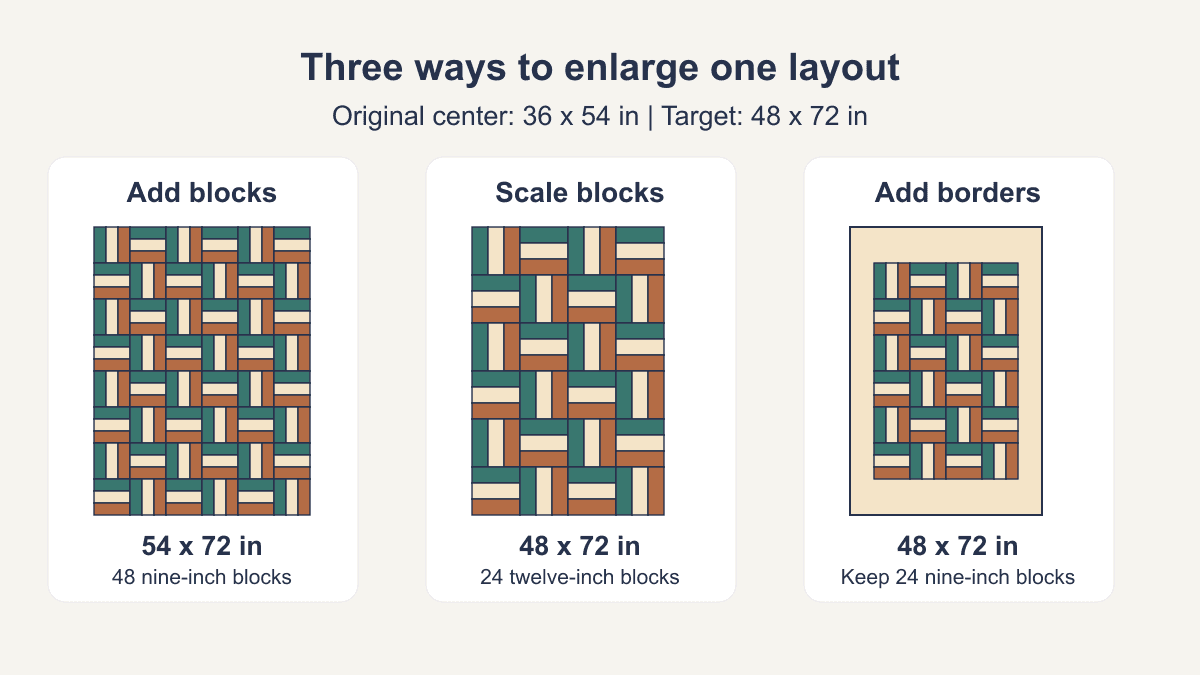
How to Make a Quilt Pattern Bigger: Three Plans
Compare extra blocks, larger blocks and borders on one original layout, with checked dimensions and fresh seam allowances.
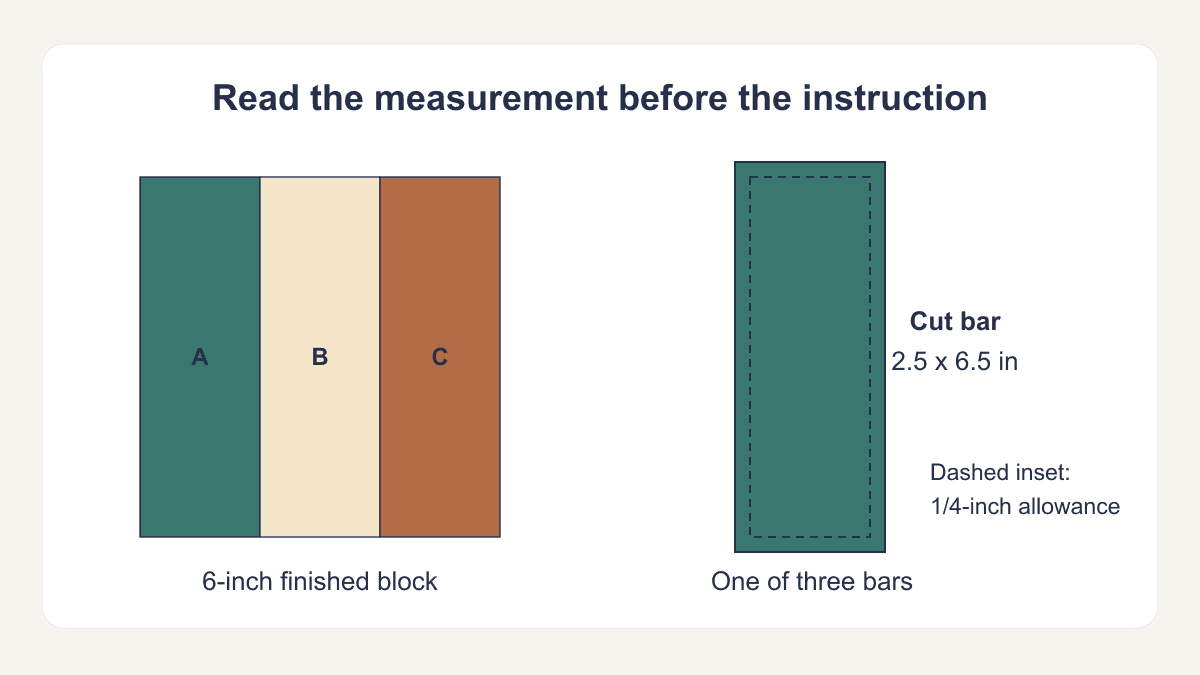
How to Read a Quilt Pattern Before Cutting
Audit sizes, fabric roles, cutting counts and assembly checkpoints on an original sample page before shopping or making your first cut.
Best Free Quilt Design Software: A Practical Check
Compare browser quilt tools by what you can draw, keep, export and use for construction, with dated public checks and a common Four-Patch task.