For ideas that need a starting point

Start with an idea. Develop it into a quilt.

Tell the QuiltLab Designer what you have in mind: a block, a palette, a quilt size or just a starting idea. Work through its questions, review supported proposals, and keep shaping the design in the editors.

Describe your quilt

Sign in for the full Designer. AI requests use your current plan credits and usage allowance.

See the recorded workflow

A real QuiltLab example

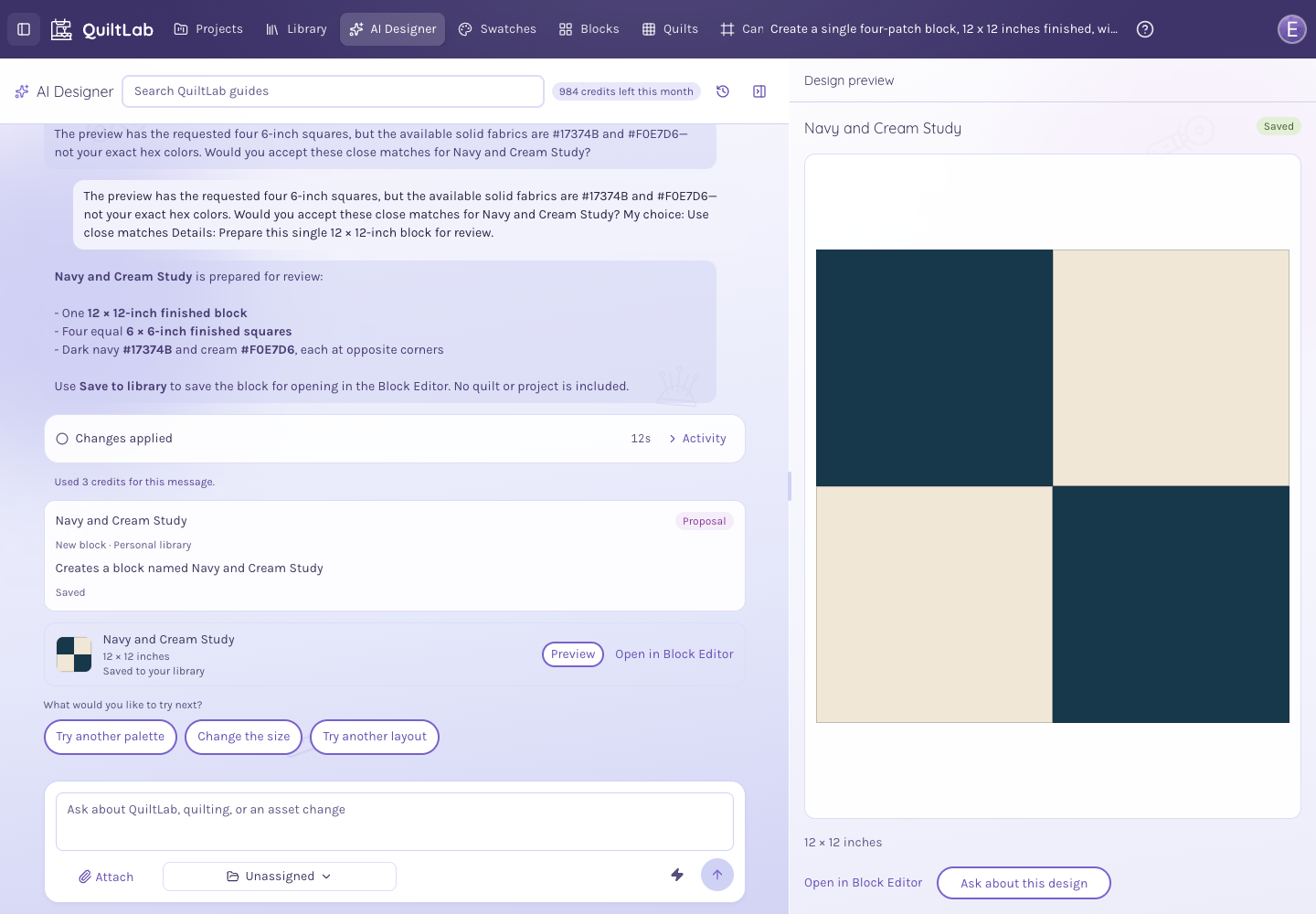
An actual QuiltLab AI Designer conversation and its saved navy and cream twelve-inch four-patch block
A recorded Designer request produced this 12-inch four-patch. After a palette clarification, the block was reviewed and saved to the demo account’s library.

From your idea to your next step

A place to start, room to keep creating

  1. Describe the direction

    Share the style, colors, dimensions or block idea you want to explore. Add details as the Designer asks questions.

  2. Review and refine

    Inspect the response and any supported proposal. Ask for a change or choose an available next step before creating the design.

  3. Continue in the editor

    Use the offered create, save or open action when available, then refine the editable design with the regular QuiltLab tools.

Inside the app

See the workflow in QuiltLab

Review the result beside its conversation

An actual QuiltLab AI Designer conversation and its saved navy and cream twelve-inch four-patch block
A recorded Designer request produced this 12-inch four-patch. After a palette clarification, the block was reviewed and saved to the demo account’s library.

Continue with the measured pieces

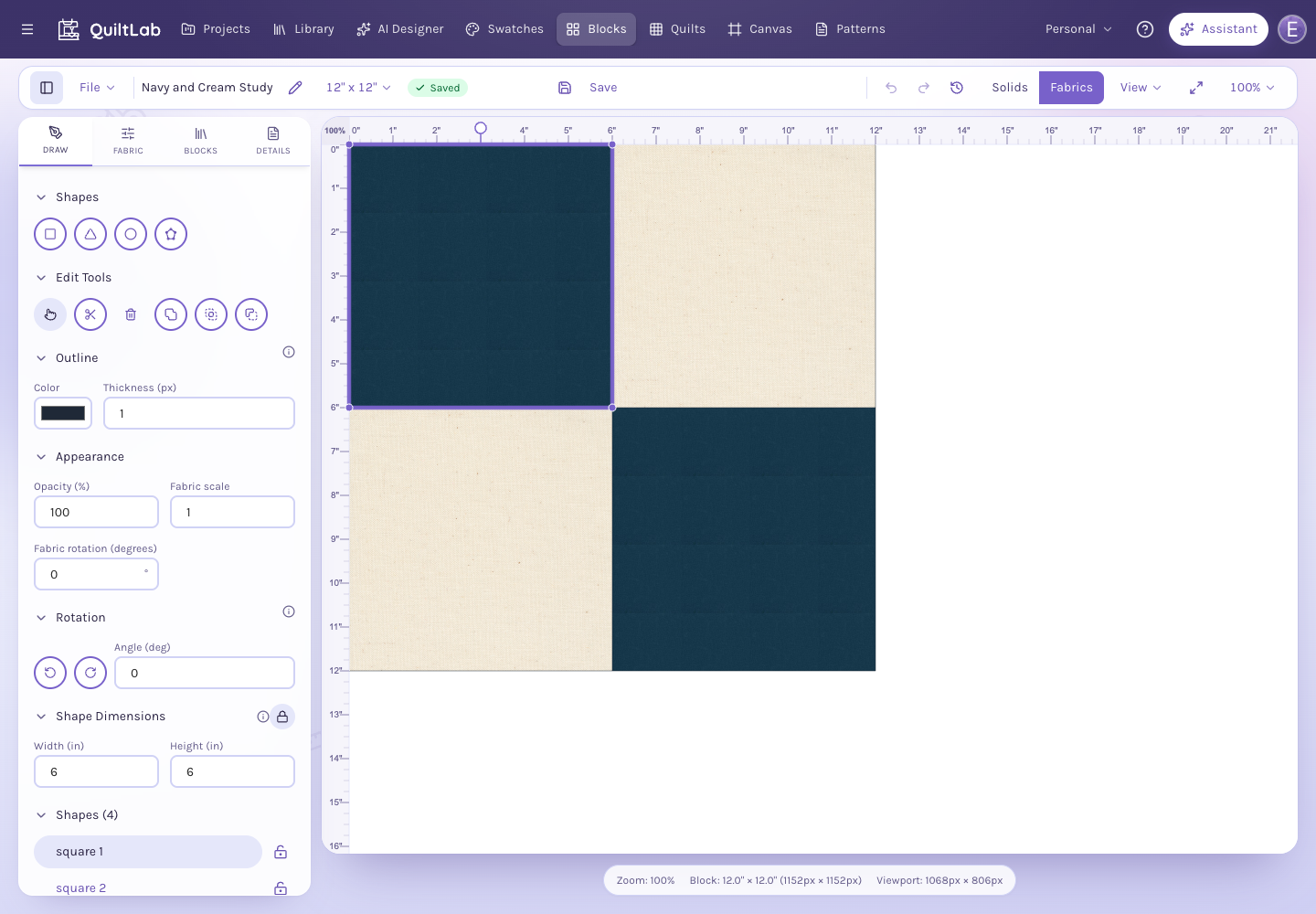
The same AI-created Navy and Cream Study open in the Block Editor with four editable square patches and twelve-inch dimensions
The same saved block opened in the Block Editor. Its saved document was checked: 12 by 12 inches, with four editable square patches.

A real request, from conversation to editor

For this example, we asked for one 12-inch four-patch block with navy and cream on opposite corners. The Designer found nearby catalog solids and asked us to confirm the palette. We accepted the matches, reviewed the proposal, saved the block and opened its four pieces in the Block Editor.

Bring the details you know

You can start with a broad idea, then add constraints such as a palette, a finished size or a block style. Clear details help the conversation focus on the design you want to explore.

Make each next step deliberate

Read the proposal, check its measurements and review any limitations. The Designer’s available actions guide you into supported creation or editor workflows when you are ready.

Use the whole QuiltLab workspace

Sign in for the full Designer and account-based design tools. Continue working with the block and quilt editors, your fabrics and your saved projects as your idea develops.

Before you begin

Can I use the Designer without an account?

The homepage offers a limited guest conversation when available. Sign in to use the full Designer and account-based creation, saving and project tools. Available guest actions and account actions can differ.

Does every request produce a quilt preview?

No. Some requests need clarification, produce an explanation or exceed the supported workflow. Review the response and use the next action offered for your request.

How does AI usage work?

Account AI use is subject to current plan credits, service availability and usage controls. Check the pricing page and your account for the current allowance before starting a larger task.

Is an AI design ready to cut and sew?

Check the geometry, dimensions, seam allowances and construction before making the quilt. AI assistance is a way to explore and develop a design; your review is part of the process.

Make room for your next idea

Start with the tools for this project, then keep shaping it in QuiltLab. The editors work best on a desktop or laptop browser.

Describe your quilt

Sign in for the full Designer. AI requests use your current plan credits and usage allowance.