Does every group member need an account?
Members sign in to access a project and accept an invitation. Project access is controlled by active membership and the member’s role.
For quilt guilds and collaborative groups
Give the quilt’s fabrics, blocks and design documents a shared home. Invite the people involved, choose who can edit or review, and keep discussion close to the project.
Project owners and invited members need accounts. You choose invitations and member roles.
Explore teaching materialsFrom your idea to your next step
Sign in, create a project and add the quilt, blocks, swatches and documents that the group needs to discuss.
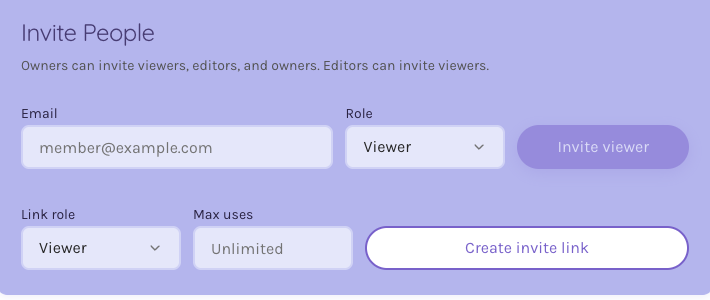
Use the project’s invitation controls to give the intended people owner, editor or viewer access.
Discuss the project and share deliberate updates. Members see the shared project version; private drafts stay with their author until shared.
Inside the app
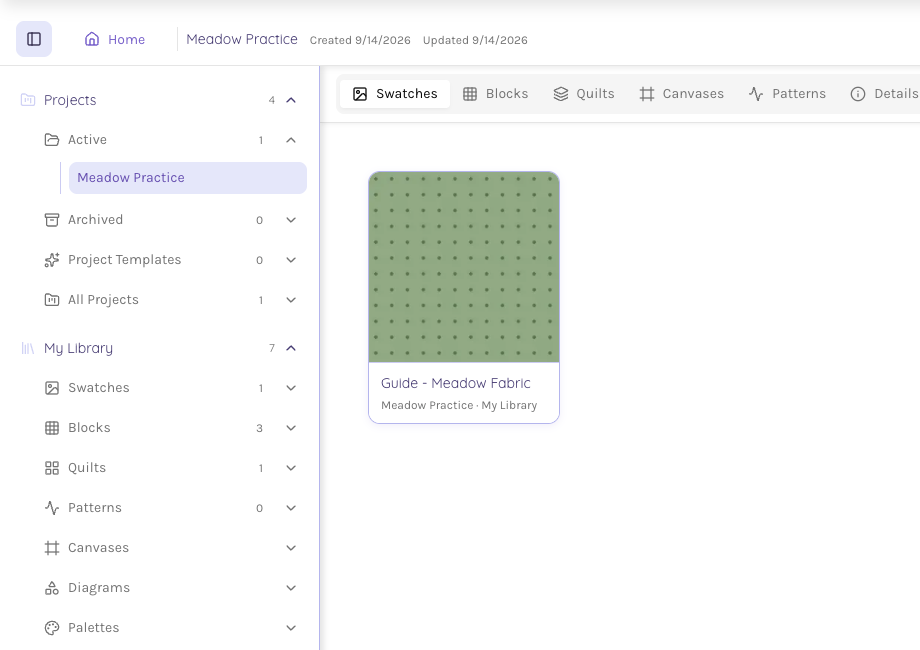
Keep the relevant swatches, blocks, quilts, canvases and patterns in the project. The separate asset views help members find what they need without searching another person’s private library.
Owners manage the project. Editors can work on its design assets. Viewers can review the shared work and participate where their role allows. Membership controls access to the project.
A private draft is distinct from the shared project version. Use the editor’s project save or update action to share the version you want other members to review.
Members sign in to access a project and accept an invitation. Project access is controlled by active membership and the member’s role.
Yes. The viewer role lets a member read the project’s shared work without editing the design assets. Project permissions determine which additional review and copy actions are available.
Editor drafts and the shared project version are separate. A member’s private draft is not the shared version; use the appropriate project save or update action when changes are ready to share.
No. You create the project and choose invitation actions in its member controls. Review the destination and role before sharing an invitation or sending an email.
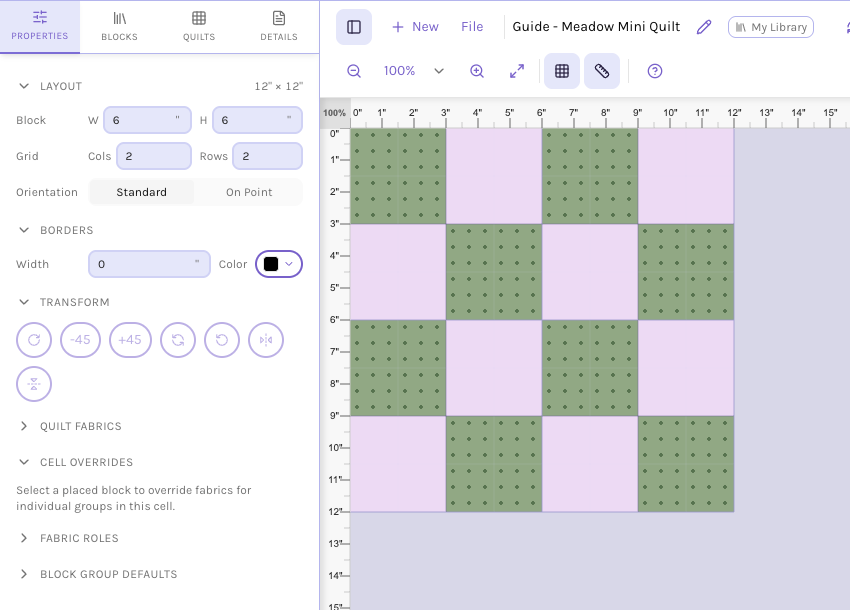
Start with the tools for this project, then keep shaping it in QuiltLab. The editors work best on a desktop or laptop browser.
Start a group projectProject owners and invited members need accounts. You choose invitations and member roles.