Can I start from a traditional block?
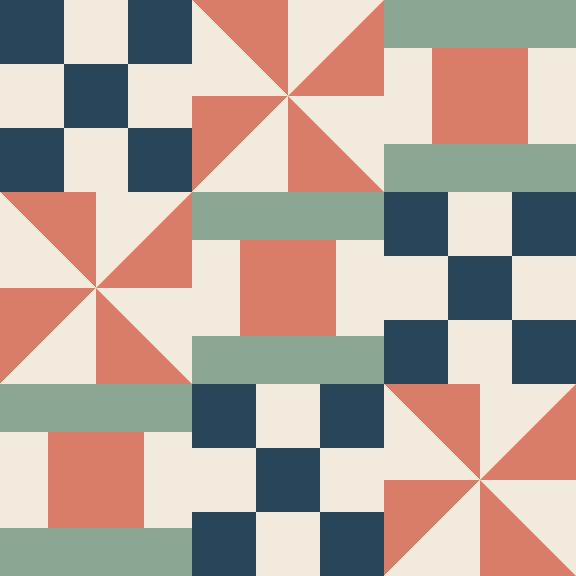
Browse the existing quilt block library for examples and available designs. Start the Block Editor when you want to draw your own geometry, then save the result to your account.
For original block designs
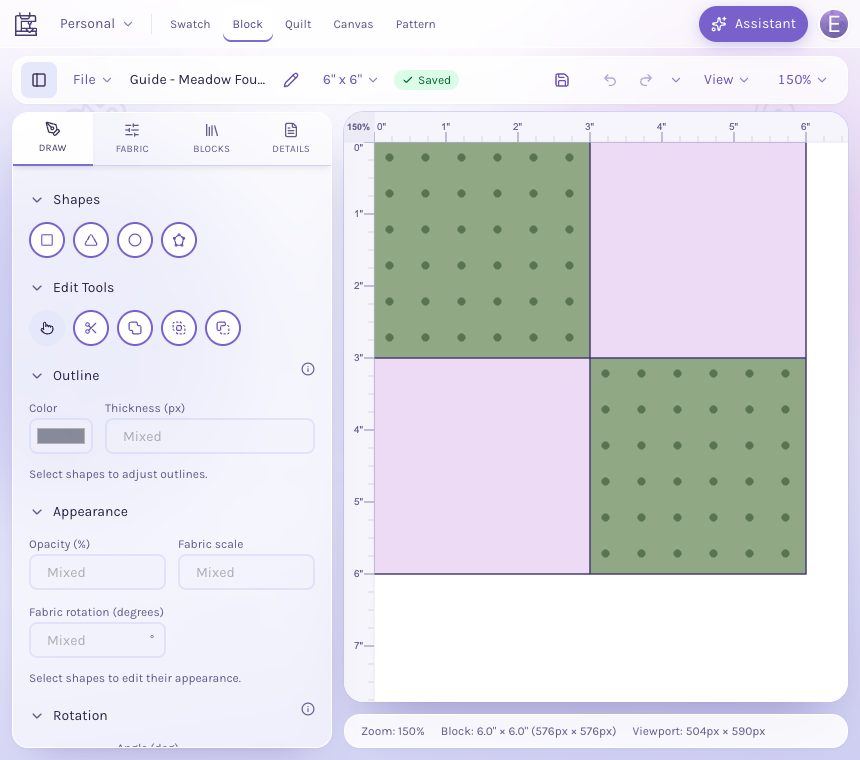
Build a block from measured shapes, try fabrics in each patch, and see what happens when the block repeats. Develop the geometry and the fabric choices together as your idea takes shape.
Use a desktop or laptop for drawing. An account is required to save your block.
Explore quilt blocksFrom your idea to your next step
Choose the finished block dimensions and work with rulers and geometry measured in inches.
Arrange supported shapes, then assign colors or fabrics to the pieces. Refine the layout as you go.
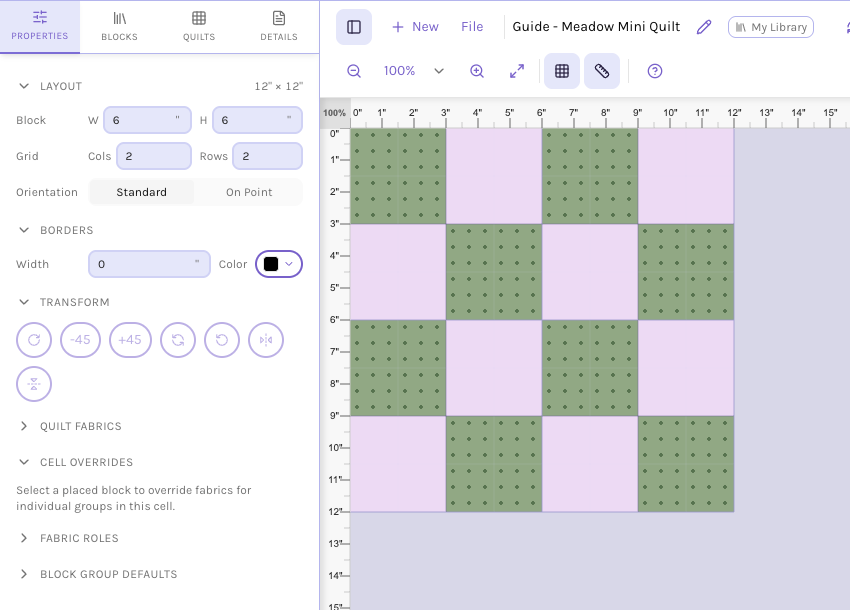
Save the block and add it to a quilt layout. Change its placement and fabrics to discover the larger pattern.
Inside the app
Work with the shapes that make up your block rather than a single flattened picture. Select pieces, change their placement and fill them with fabrics or solid colors.
A block can look very different when repeated. Try it in a Quilt Editor layout to explore how lines, color groups and neighboring blocks meet.
Save blocks to your library for future quilts, or use their artwork when you lay out a pattern. A clear drawing is a useful starting point for checking how you will construct the block.
Browse the existing quilt block library for examples and available designs. Start the Block Editor when you want to draw your own geometry, then save the result to your account.
Yes. Prepare a fabric photograph as a swatch and use it to fill supported block pieces. You can also choose available catalog fabrics and solid colors.
A block drawing describes the geometry and fabric placement. Review finished dimensions, seam allowances and construction yourself; the drawing alone does not certify that a block is ready to cut and sew.
Save the block in your account, then use it in other supported quilt layouts. Review each design’s fabric assignments and size after placing it.
Start with the tools for this project, then keep shaping it in QuiltLab. The editors work best on a desktop or laptop browser.
Design a blockUse a desktop or laptop for drawing. An account is required to save your block.