







Canvas
Use QuiltLab for Adobe Illustrator
Connect Illustrator to QuiltLab, import artwork into existing or new projects, and export supported vector artwork.
Updated
Sep 23, 2026
Read time
5 min
Level
Beginner
Before you start
QuiltLab for Adobe Illustrator connects your Illustrator artwork to your QuiltLab account. The plugin is free; your normal QuiltLab account limits apply. You need an internet connection and an account at QuiltLab. The release is tested on Illustrator 2026 (30.3.0), macOS 26.6 and Apple silicon. Other Illustrator versions and Windows have not been verified for this release.
Install and connect
Install QuiltLab for Adobe Illustrator from its Adobe listing when available.
For an approved beta, install the signed .zxp supplied by QuiltLab using a
compatible ZXP installer. Save your Illustrator work before restarting the app.
Open Window > Extensions > QuiltLab; some Illustrator versions name this
menu Extensions (Legacy).
Choose Sign in to QuiltLab, open the approval page in your browser, sign in, and approve the plugin. Return to Illustrator and choose Continue if prompted. The release connects to QuiltLab automatically; there is no server URL to enter.
Import into an existing project
- Open the
.aifile in Illustrator and make it the active document. - Open the plugin's Import tab.
- Select the destination project. You need permission to edit that project.
- Choose Import as Canvas and wait for the result.
- Review any skipped-artwork notices, then choose Open Canvas in QuiltLab.
Each successful import creates a new Canvas. It does not overwrite an existing Canvas or keep the two applications automatically synchronized.
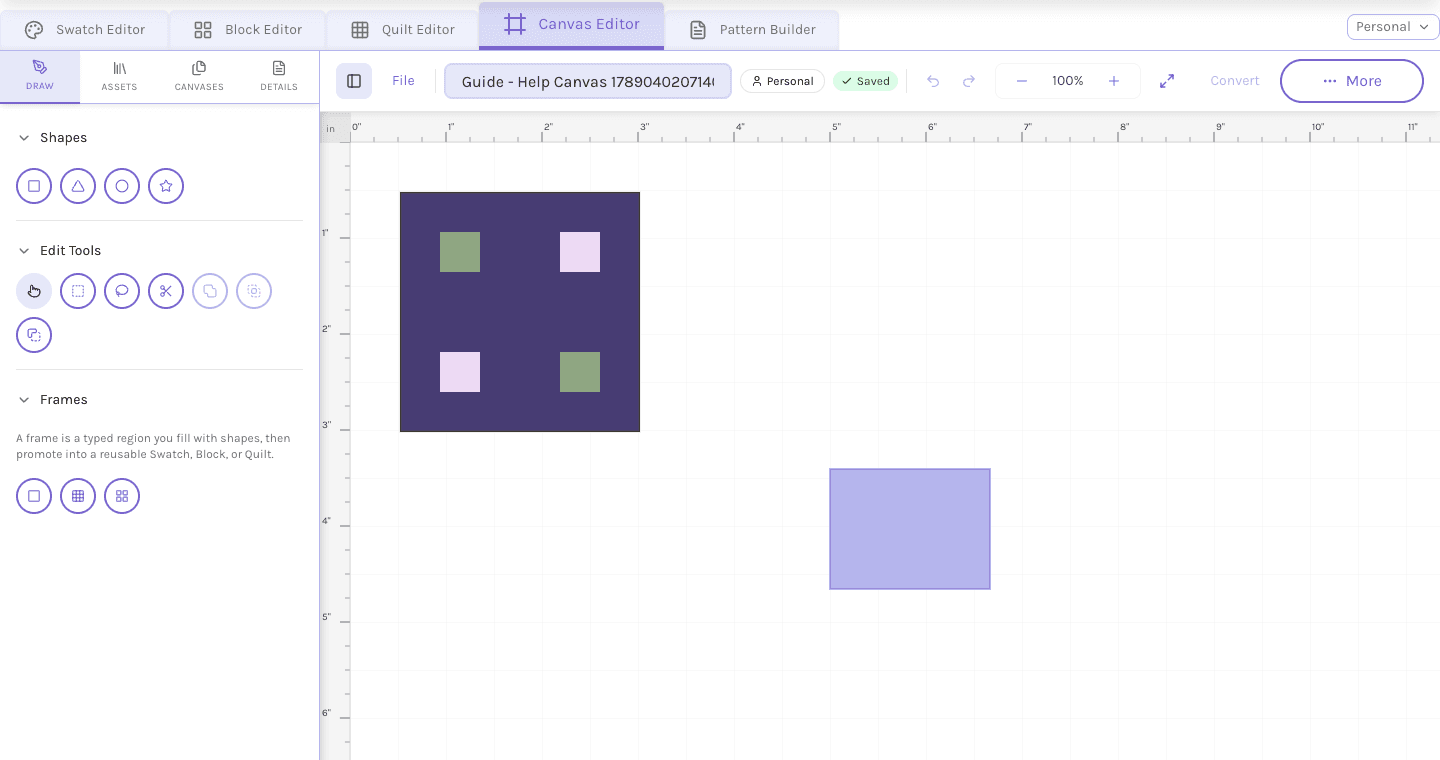
Open the imported Canvas in QuiltLab to review its objects and layout in the Canvas Editor. This image shows the editor workspace.
View full-size imageImport into a new project
Choose + New project in the destination picker, enter a project name, then choose Create project and import. This works even if your account has no projects yet. QuiltLab creates the project, gives you owner access and adds the Canvas together. If the import fails, it does not leave an empty new project. Project and Canvas plan limits still apply.
If the connection drops after submitting, use Retry the same import. This reuses the original request so a lost response does not create duplicate projects or Canvases. Start another import only when you intend to create another Canvas.
Export to Illustrator
Open Export, select a QuiltLab project and choose Export to Illustrator. Review the preview before confirming. Supported Canvas paths and vector blocks are written into a new Illustrator document. If the preview lists omissions, continue only if the supported subset meets your needs. A partial export reports its warnings and errors; inspect the resulting document before saving it.
Quilt layouts, patterns, raster-fabric round trips and automatic restoration of QuiltLab asset identity are not supported in this release. Keep your original artwork and review the converted result.
Connection and recovery
If sign-in fails, check that your browser can open QuiltLab, then use Try again. Your organization may need to allow HTTPS access to QuiltLab. The plugin does not require a local development server. If an older beta shows a localhost URL, update to the current release.
Sessions expire after 24 hours or when the linked browser session becomes invalid. Sign in again when asked. Settings > Sign out revokes the plugin session without signing your browser out.
If Illustrator is still processing an operation, wait for it to finish. Use Check Illustrator status when offered and inspect the document before retrying. For support, choose Settings > Save diagnostic report. The report is saved to your Desktop and excludes artwork and credentials. Send the report and a description of the problem to support@quiltlab.co.
Privacy
The plugin sends artwork geometry and project identifiers to QuiltLab when you request an import or export. It stores its login credential locally. Browser approval uses QuiltLab's sign-in system. Read the Privacy Policy and Terms of Service for account and service information.