How to Save Quilt Colorways as Separate Quilts
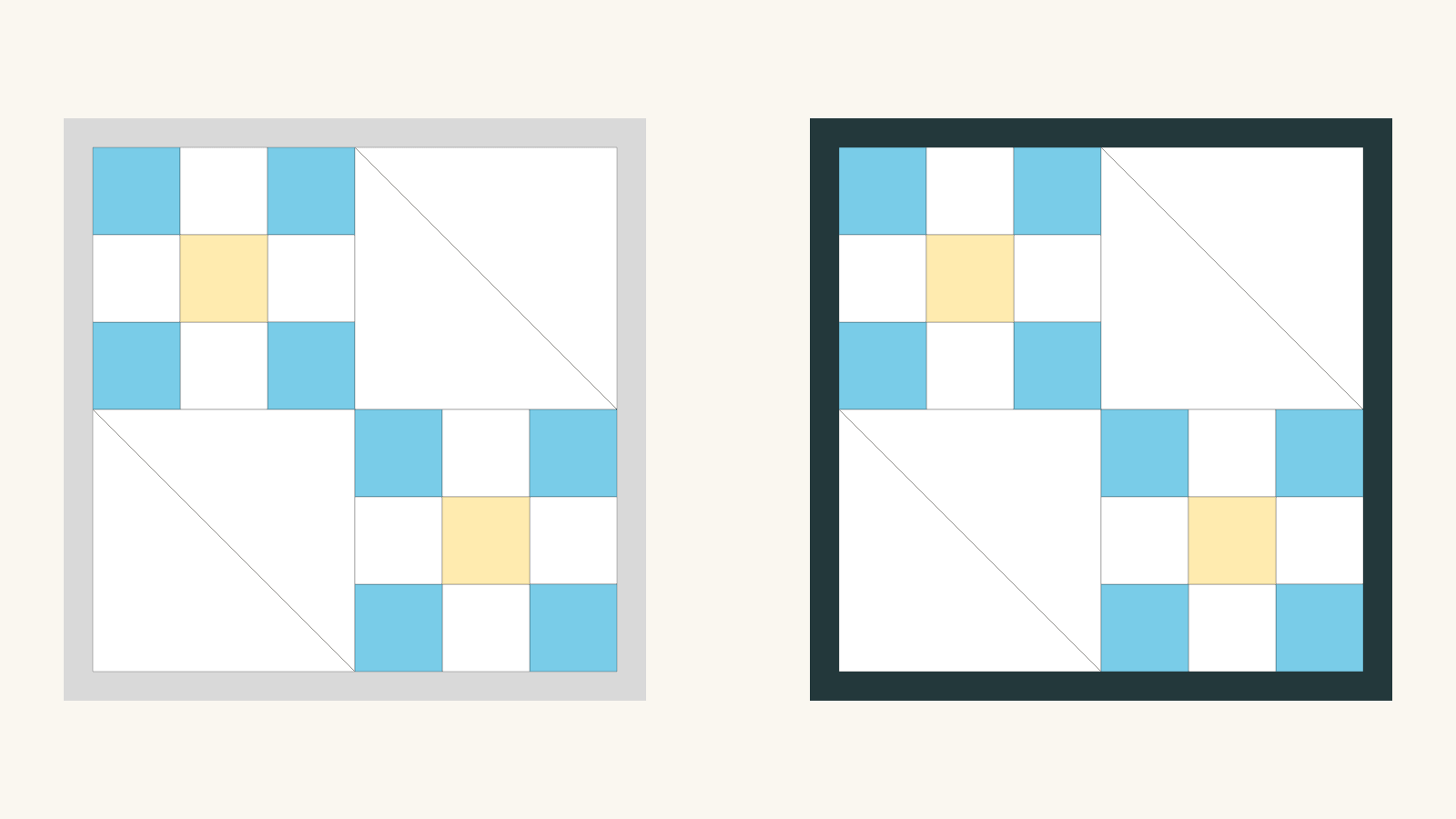
To save quilt colorways as separate quilts, save your original first, then choose File → Save A Copy… before changing a color. Name the copy, choose Save Copy and check that the editor has opened a different quilt address. Make your changes there. Reopen both quilts afterward to confirm that each kept the colors you intended.
Copying first matters because the Quilt Editor also autosaves. If you recolor the original and only then make a copy, you may already have saved those changes into the original. A useful name helps you recognize an alternative, but a separate saved document is what preserves it.
Start with one saved personal quilt
These steps use a personal quilt in QuiltLab. Open the design you want to preserve and wait for Saved beside its name. The Saving, Recovery and Projects guide explains that Saving is still pending, while Saved reports that the current tracked changes have saved to their destination.
Write a short description of the starting point. For example: “gray border, blue-and-yellow center, four blocks.” That is more useful than trying to remember which thumbnail came first.
Our October 24, 2026 check used a small practice quilt with four 9-inch blocks in a two-by-two layout. The center was 18 × 18 inches, surrounded by a 1-inch border for 20 × 20 inches overall. We kept that geometry and changed only the border in the copy. The images below are actual QuiltLab exports from that saved-and-reopened check; they are digital designs, not sewn quilts.
For your own comparison, choose one job for the first copy. A different border, background or accent is easier to judge than changing every color and the layout at once. The saving method stays the same whether you later choose the quiet version or the stronger one.
Make the copy while the original is still intact
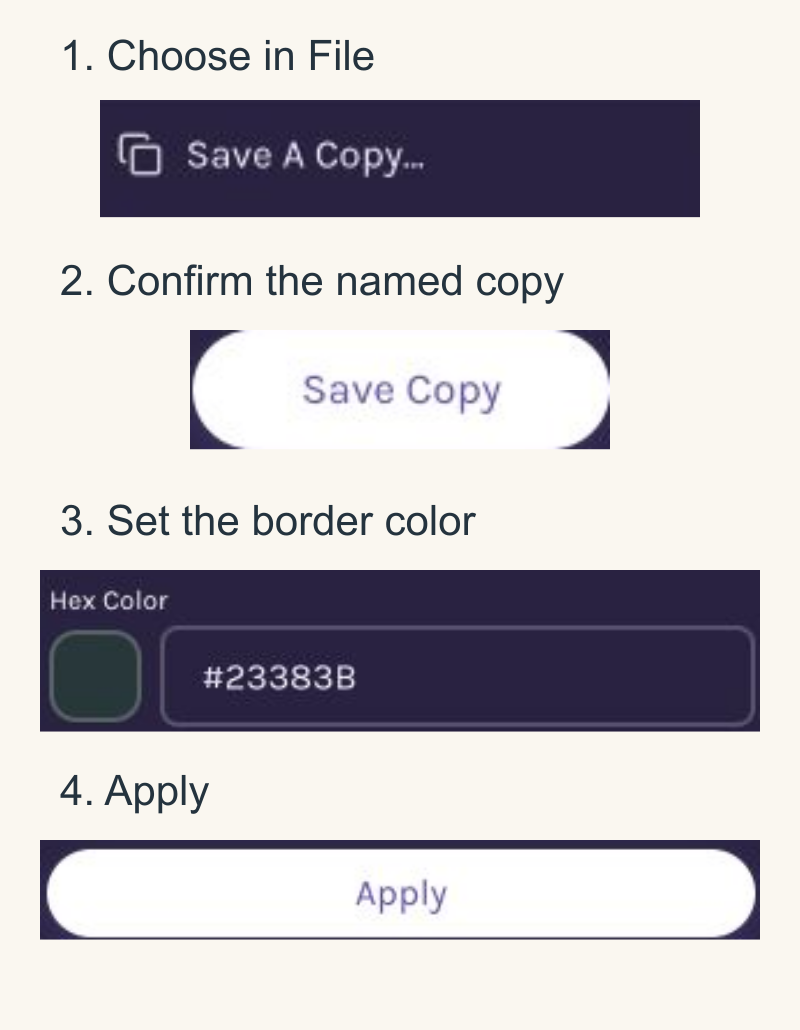
Open File and choose Save A Copy…. In the Save a Copy dialog, enter a descriptive Quilt name, then choose Save Copy.
Use a name that identifies the decision. “Garden quilt — dark border” is easier to find later than “Copy 3.” If you expect several alternatives, keep the main quilt name and change the short ending each time.
In our check, the browser address changed to a different quilt ID before any recoloring. The comparison below uses the short labels Original and Dark-border copy.
Pause at that point. Check the new name and the changed address before editing. If the copy has not finished opening, keep the original colors in place while you resolve the save. Renaming a quilt alone does not create a second document.
Change a quilt-local role in the copy
Our example uses the existing border’s solid-color control. In Properties, find Borders and open the border’s color swatch. Enter the chosen value in Hex Color, then choose Apply.
We changed the border from light gray, #D9D9D9, to dark blue-green, #23383B.
Keep Finished width at 1 inch for this comparison. The Quilt Editor guide explains that changing a border’s width changes the overall size. Here the question is the color of the frame around the same center, so changing its width would add another decision.
This is a border edit inside the quilt. We did not open a library block and change its source colors. Keep that distinction clear when trying your own alternative: a saved quilt copy is not a reason to assume every referenced library asset has also become a new independent asset.
For a first comparison, stay with the one local role you planned. You can make another named copy later if you want to explore a wider palette.
Save, reopen and check both versions
Choose Save and wait for Saved. Then reopen the copy and check its name, border and dimensions. The guide’s My Quilts link is the place to reopen personal quilts.
Next, open the original separately. Look for the colors you meant to preserve, along with the same block count, arrangement and overall size. Going back to the original is part of the check; a successful save on the copy does not show what happened to the starting version.
Our two reopened quilts gave this record:
| Check | Original | Dark-border copy |
|---|---|---|
| Saved document | Original quilt address | Different quilt address |
| Border solid | #D9D9D9 | #23383B |
| Center layout | Four blocks, 2 × 2 | Four blocks, 2 × 2 |
| Center and overall size | 18 × 18 in; 20 × 20 in | 18 × 18 in; 20 × 20 in |
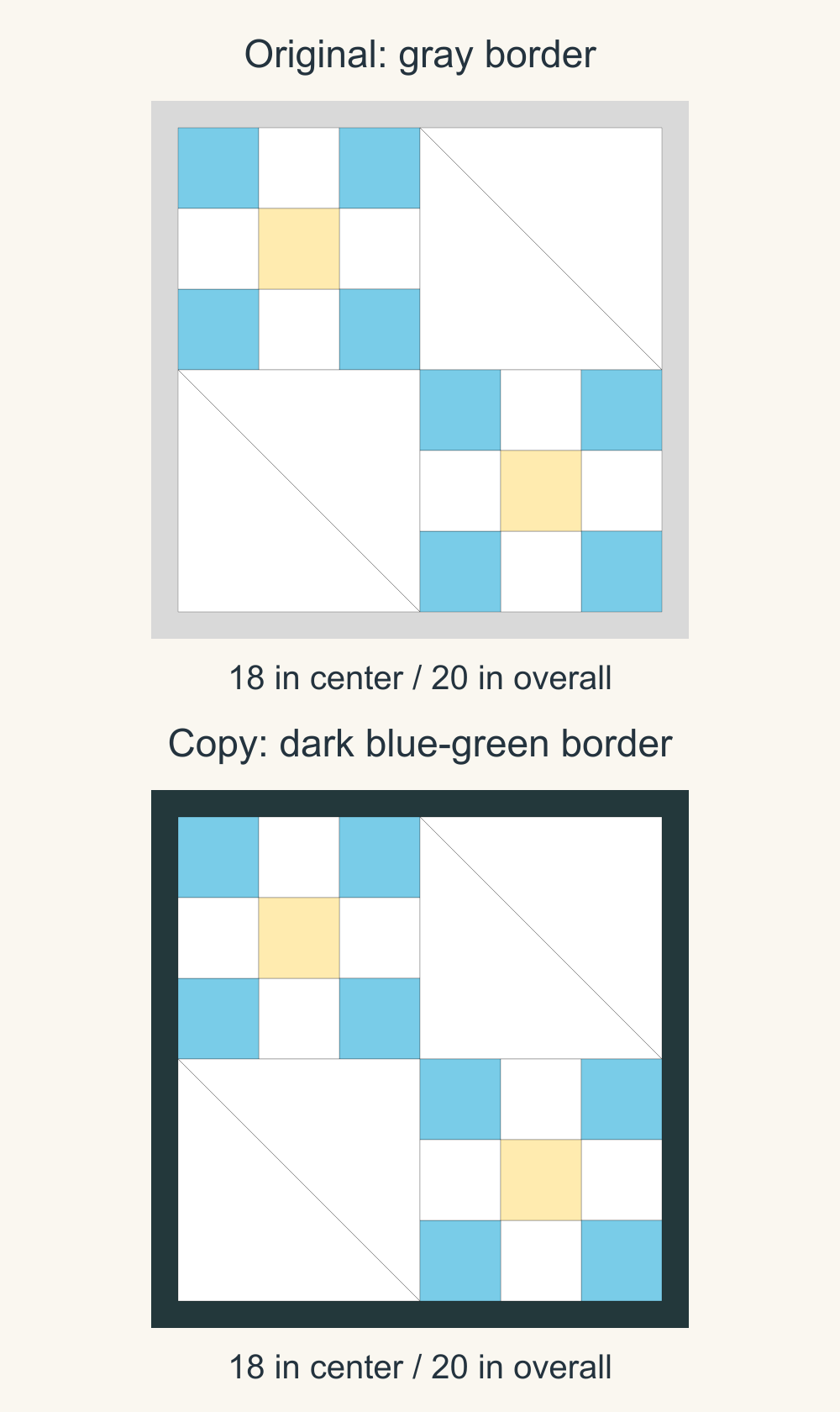
In the October 24 example, both exports contained the same 26 shapes in the same positions. Only the four edge shapes forming the single border changed their fill. The other 22 shapes kept their colors. The reopened copy’s SVG matched its saved export exactly, and the reopened original’s SVG matched its earlier export exactly.
We repeated the copy, border-color edit and save-and-reopen check on November 5 with a fresh personal practice quilt. The copy opened at its own address and kept the dark border. The original kept the gray border and exported exactly as it had before the copy was made.
You do not need to inspect an SVG file to use this workflow. Checking both reopened designs gives you the practical answer: can you still return to the version you started with?
Keep the comparison easy to repeat
Save a short note with the two names: “Same layout and border width; gray versus dark blue-green border.” That tells you what the images are comparing when you return a week later.
If you export pictures for a folder, give them matching names that include the difference. Keep the editable quilts too. A picture records the appearance you exported; it is not the same as reopening the editable design.
For another experiment, open the saved version you want to branch from and repeat Save A Copy… before the next change. You can branch from the original or from a copy, as long as you know which starting point you chose. Avoid a chain of vague “Copy” names that leaves you guessing where an alternative began.
Choose the cloth after you preserve the digital options
A saved colorway keeps a design decision available. It does not establish an exact dyed-fabric match. Robert Kaufman’s Kona Cotton catalog warns that monitor colors cannot be guaranteed to match the actual fabric.
Once you have two versions worth considering, use real swatches to check the fabrics together. GE Designs’ substitution guidance recommends looking at value and print scale and auditioning fabrics in natural light. Keep a note of the actual products you choose beside the digital version. Our solid-fabric matching guide covers that next decision.
Start with one personal quilt you already like. Save it, make a clearly named copy, change one role and reopen both. Once the original is still there and the alternative has kept its change, you can compare them without relying on memory.
Plan your next quilt
Lay out blocks and try colors in QuiltLab's grid editor before you cut.
Free forever, no card needed.
Explore designing with your fabricsGet quilting tips by email
QuiltLab updates, tips and quilting inspiration. Unsubscribe anytime.
Related posts
How to Plan a Quilt with Limited Fabric
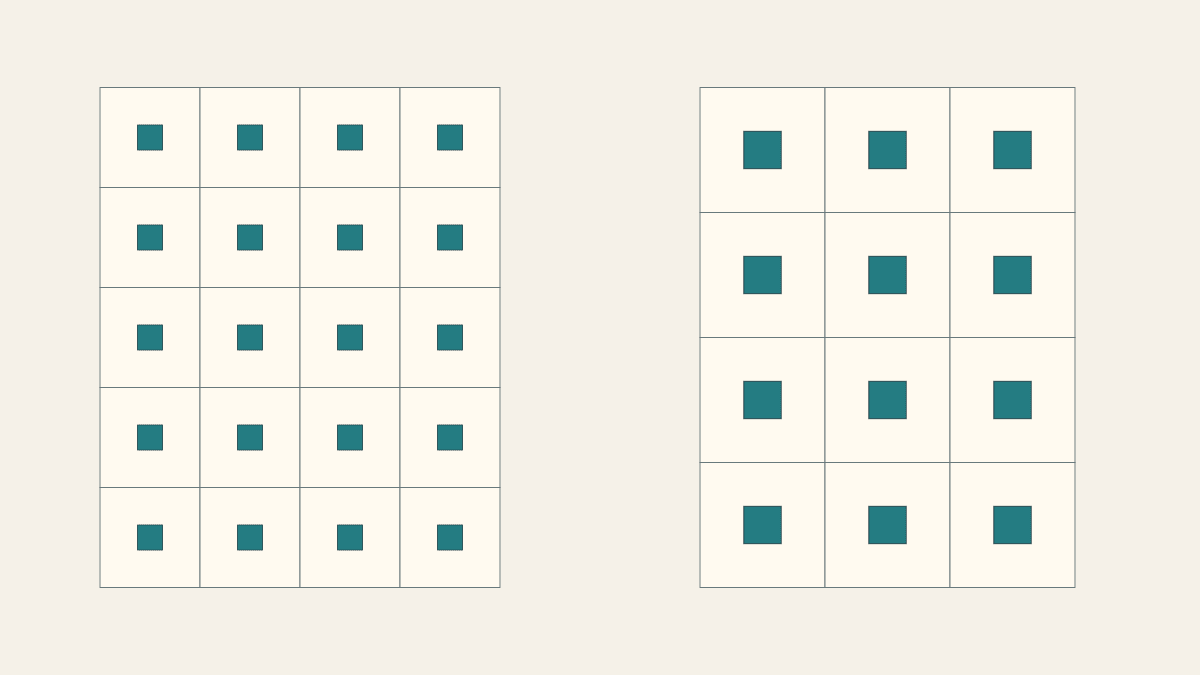
Compare two quilt layouts from one small focal fabric piece, with checked cut maps, frame sizes and an untouched reserve.
Choosing Quilt Block Size: Which Size Fits Your Quilt?
Compare three Nine Patch scales for one quilt footprint, count the joining work for a stated method, and audition prints at patch size.
How Long Does It Take to Make a Quilt? Work Out Your Own Time
A simple throw often takes two to four weeks of spare-time sewing. Here's how to time one batch of blocks and turn it into hours and a finish date.