Check an EQ8 Quilt Import Into QuiltLab
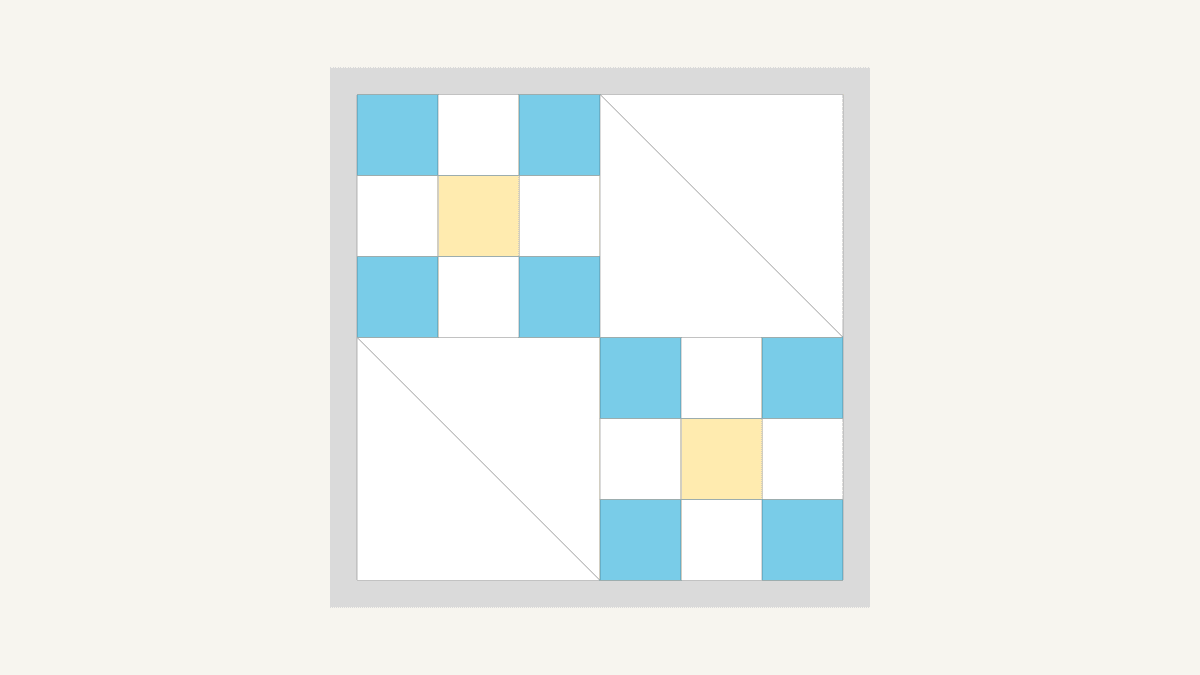
After importing an EQ8 .pj8 project into QuiltLab, open the saved blocks, fabrics and quilt before editing. Compare their shapes, fabric choices and finished dimensions with your original, then reopen the saved quilt and inspect the file you actually download. Keep your EQ8 project while you work through those checks.
Importing a .pj8 project requires sign-in. Your first import is free; importing more needs a paid subscription.
An import can finish saving everything it supports while leaving design choices to rebuild. Our October 24, 2026 production check found correct quilt dimensions alongside missing quilt-level fabric choices, a misleading contact-sheet thumbnail and a failed Canvas export. Use that dated example to plan a review of your own file.
Keep a source picture beside the imported quilt
Start with a copy of the original project and a clear picture from EQ8. Electric Quilt's project-moving guide explains copying the My EQ8 folder, including projects and library files, when moving computers. Preserve that source material separately from the new QuiltLab designs.
For a picture of the quilt, Electric Quilt's Export Options guide describes PRINT & EXPORT > Export > Image. Keep the image with a short note of the finished block size, layout and border widths. A picture helps you compare color placement; the written measurements catch size differences that a picture may hide.
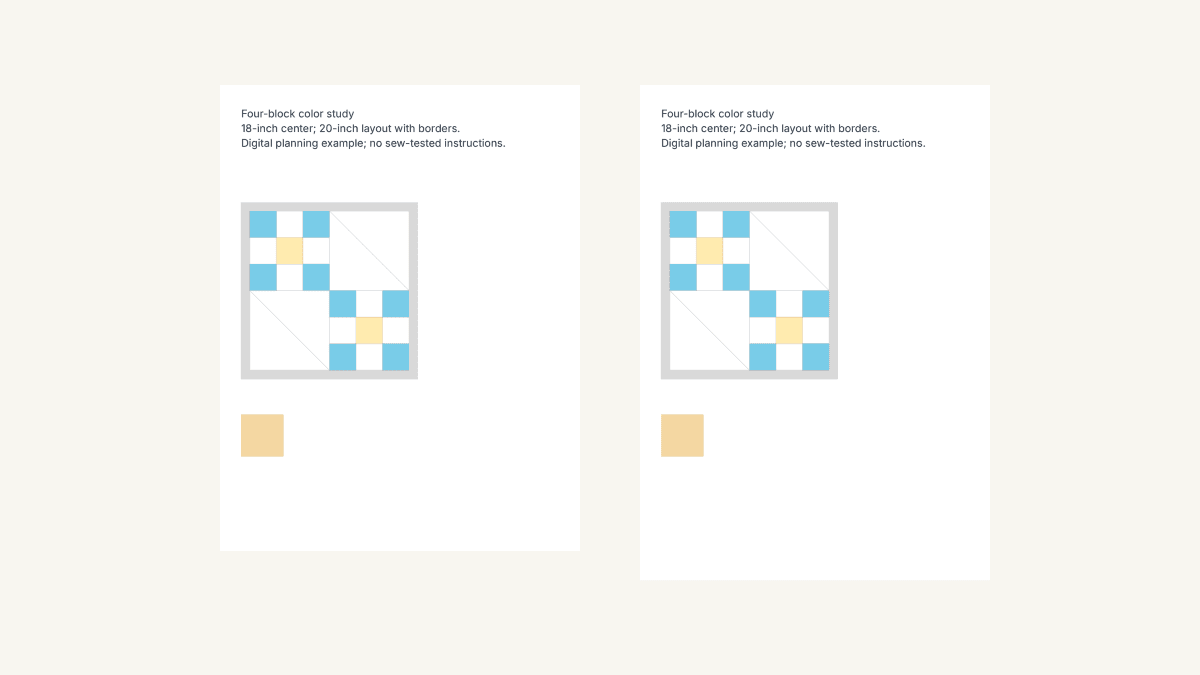
On October 24, 2026, we imported our own small test project into the running production version of QuiltLab. It had two rows and two columns of 9-inch blocks: a Nine Patch at the upper left and lower right, and a half-square-triangle block in the other positions. A 1-inch border surrounded the 18-inch center. Two library fabric images had been used in the quilt's coloring.
We opened all six saved designs and later reopened the quilt. The import's Source archives section identified decoder eq8-2026-10-08.2. These observations belong to that file and date. The steps below show what to compare in your own import; our broader EQ8 alternative comparison covers choosing design tools.
Read the counts, then open the designs
The result said Import complete. It reported two fabrics, two blocks, one quilt and one Canvas: six saved designs, with zero failed, intentionally skipped or pending items.
The eight Canvas items were a different count. The contact sheet contained five design previews and three section headings. Eight items did not mean eight imported quilts or blocks.
| Saved item | What we opened | First thing to check |
|---|---|---|
| Two fabrics | EQ8 Fabric 001 and EQ8 Fabric 002 | The images are present and Saved |
| Two blocks | Nine Patch and half-square triangle | Patch shapes, fills and block dimensions |
| One quilt | Four placed blocks with a border | Position, placement size and overall size |
| One Canvas | A contact sheet of the imported designs | Open the designs behind the previews |
Use the result's Open imported block, Open imported fabric and Open imported quilt links to inspect the separate items. Record a difference when you find it. Recoloring immediately can hide whether a change came from the import or your later edits.
Separate a 12-inch library block from its 9-inch placement
Both saved blocks opened at 12 by 12 inches in the Block Editor. The same blocks occupied 9 by 9-inch positions in the imported quilt. Those are two measurements of two different uses of the block.
QuiltLab's import facts describe that distinction: standalone blocks arrive at 12 inches, while a supported straight-set quilt keeps its block placement dimensions. Electric Quilt's quilt block-size guide likewise identifies the quilt worktable's block dimensions as finished sizes.
Our Nine Patch makes the comparison easy to see. Its three equal divisions span 12 inches in the saved block, so each square spans 12 / 3 = 4 inches there. In a 9-inch quilt placement, the corresponding square spans 9 / 3 = 3 inches. The placement is three-quarters of the library block's displayed width.
Check the quilt before deciding to resize the saved block. If the source quilt uses 9-inch blocks and the imported placements are 9 inches, a 12-inch library document alone does not show that the quilt is too large.
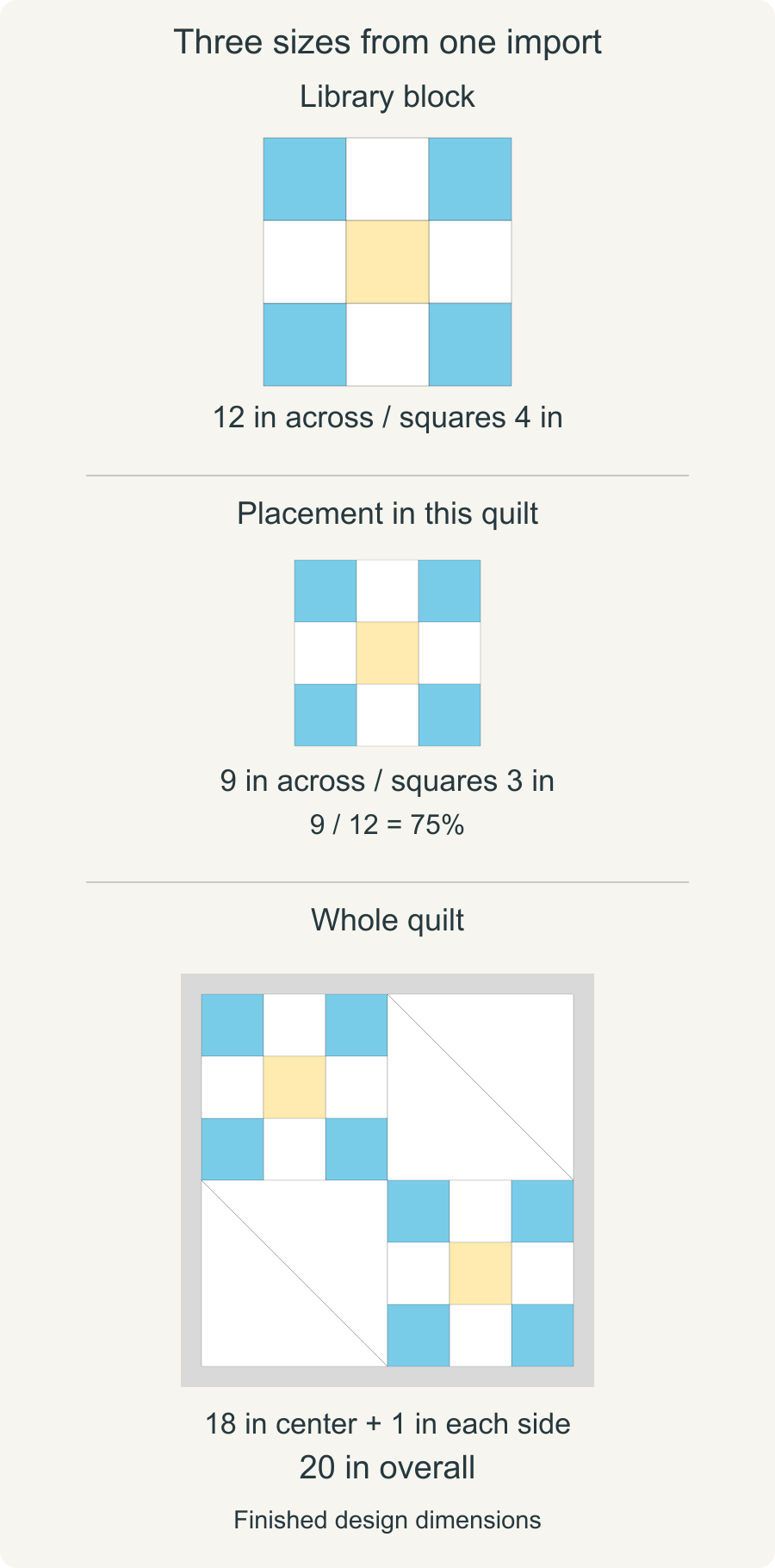
The whole-quilt arithmetic is separate:
- Two 9-inch blocks across make an 18-inch center.
- Two 9-inch blocks down make the same 18-inch height.
- A 1-inch border on both sides adds 2 inches, giving 20 by 20 inches overall.
The opened quilt showed all those values: 9-inch blocks, two columns, two rows, an 18-inch quilt top and 20 inches overall. The Quilt Editor guide explains the Layout and Borders controls. Read the top and overall measurements together so you count the border once.
Check fabric choices inside the quilt, too
Both fabrics opened successfully. One showed a red texture and the other a purple print, each with a Saved badge. Their editor canvases were 256 pixels square and displayed 2.67-inch bounds. We had not measured the physical cloth, so those displayed bounds did not verify its real print scale. The Fabric Editor guide explains the size controls to check when preparing a fabric image.
The quilt told a different part of the story. Its Nine Patch blocks had blue corners, white side squares and a pale yellow center. Both triangles in each half-square-triangle block were white. The border was gray. The red and purple choices from the source quilt were absent.
That agrees with the documented import limit: quilt-level fabric choices do not carry over. A fabric can be saved without being assigned to the patch where you used it in EQ8. Write down which choices need rebuilding before you continue with color changes.
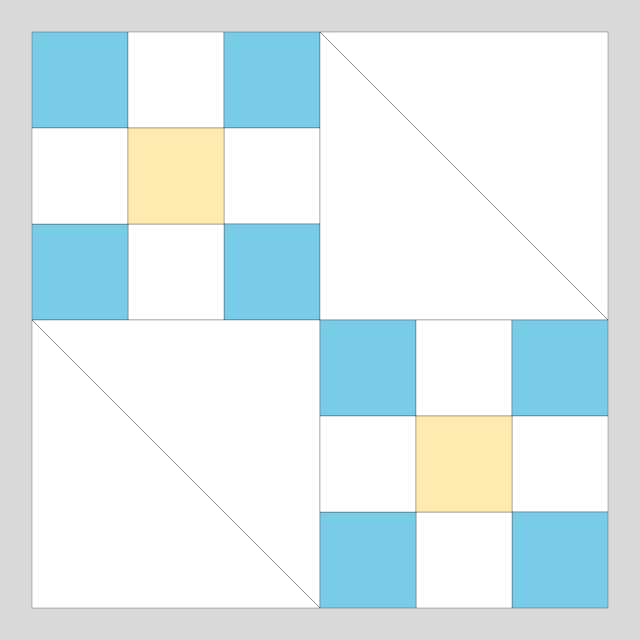
Open pale blocks rather than treating them as blank. Our white half-square-triangle block still had two triangle shapes and a diagonal seam line. Across the whole layout, two nine-patch blocks and two two-patch blocks gave 2 x 9 + 2 x 2 = 22 patch shapes, before the border. Four block placements and 22 patches describe the same quilt at different levels.
Use thumbnails to find a design, then inspect the editor
Our contact-sheet Canvas was saved and contained the quilt, both blocks and both fabric previews. Its quilt thumbnail, however, showed four solid beige and blue cells. It did not show the detailed Nine Patch and triangle arrangement visible in the Quilt Editor and its export.
Use the opened quilt as your comparison with the source picture. Check every corner, any directional motif and the border. We did not confirm the native EQ8 rotation or flip behavior in this case, so it does not establish orientation fidelity for other imports.
A thumbnail mismatch also belongs in your review notes. It can make a useful design look wrong, or make an incomplete design look reassuringly simple. Opening each saved item gives you the detail needed to decide which situation you have.
Reopen the quilt and try the export you need
After leaving the editor, we reopened the same saved quilt. It retained the four placements, dimensions, fills and border. Its second SVG export was byte-for-byte identical to the first. The individual block SVG exports also worked.
In that October 24 run, the contact sheet's SVG export failed twice with an asset-image fetch error and produced no download. We could inspect the quilt and block SVGs, while the Canvas SVG remained unresolved.
Try the specific file you need before relying on the imported project for a deadline. Open the download and compare it with the editor. If the export fails, keep that task unresolved; note the editor, file type and message when you contact support. The saving and recovery guide helps separate an account save from other milestones.
Decide what to keep before you edit
Give each part of your import one of three outcomes. Keep the source picture and measurements beside this list so a correct-looking thumbnail cannot stand in for a check.
| Outcome | Evidence to record | Example from our October 24 check |
|---|---|---|
| Keep | A match with the source that survives reopening | The 9-inch placements and 20-inch overall size |
| Rebuild | A specific source choice you can identify and restore | The red and purple quilt-level fabric choices |
| Unresolved | A comparison or download that still needs to succeed | Native orientation and the Canvas SVG export |
Then choose one next action for each unresolved item: compare a directional block with EQ8, check a fabric against measured cloth, or retry the file type you need. Once you have recorded the differences, you can edit with a clear record of what arrived and what you changed.
Free patterns to try
Printable PDF patterns with cutting charts and diagrams, free to download.
Plan your next quilt
Lay out blocks and try colors in QuiltLab's grid editor before you cut.
Free forever, no card needed.
See what QuiltLab brings across from EQ8Get quilting tips by email
QuiltLab updates, tips and quilting inspiration. Unsubscribe anytime.
Related posts
How to Review a Collaborative Quilt Design
Compare one proposed group-quilt change, check its size and actual block placements, then keep the private draft separate from the shared result.
Move a Quilt Layout to Pattern Builder
Carry a saved quilt layout into Pattern Builder with checked dimensions, a block inventory and a row map. See what the exported PDF still needs.
Make Your Quilt Pattern PDF Fit Letter and A4
Check both paper formats, margins and every exported page. A real two-page example shows why changing page size differs from shrinking the print.